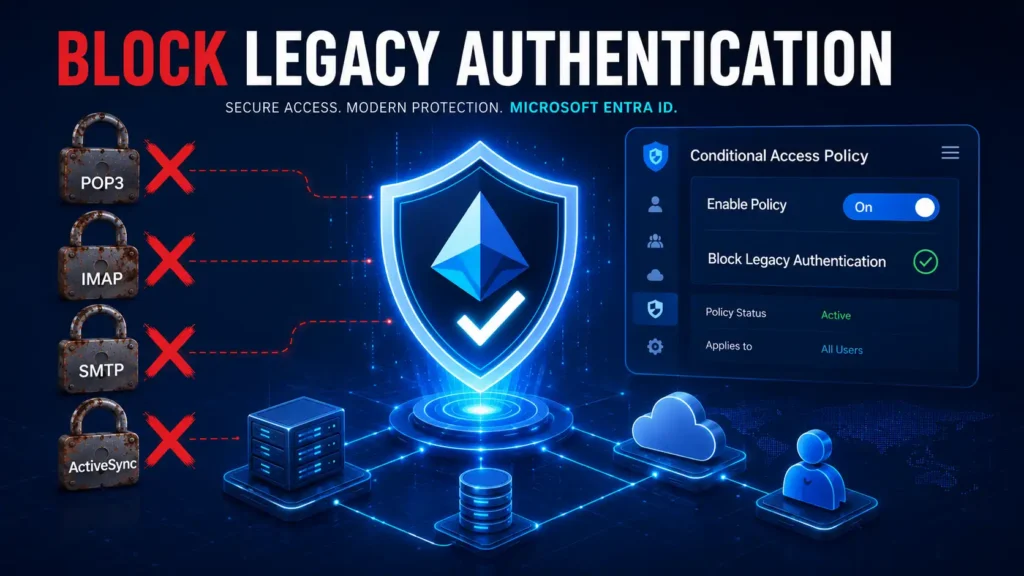
Block Legacy Authentication in Entra ID with Conditional Access
The Hidden Gateway: Why You Must Block Legacy Authentication Now
If you are a Microsoft 365 administrator, you have likely invested significant time and budget into securing your digital estate. You’ve enabled Multi-Factor Authentication (MFA) for your users, rolled out Microsoft Defender for Office 365, and perhaps even implemented a Zero Trust network architecture. Yet, despite all these defenses, a single overlooked protocol can render your entire security posture obsolete.
I am talking about legacy authentication—the outdated, but still stubbornly persistent, set of protocols that predate modern identity verification standards. To block legacy authentication is to close the most frequently exploited attack vector in cloud environments today.
Here is the harsh reality that keeps security architects up at night: Legacy authentication protocols do not support MFA. They do not support Conditional Access policies. They do not support modern token-based security. They rely entirely on a simple username and password combination. This means that an attacker who compromises a user’s credentials—perhaps through a phishing campaign, a data breach on another platform, or a simple password spray attack—can authenticate to your tenant using these protocols and never trigger an MFA challenge. This is precisely why every serious security framework mandates that you block legacy authentication as a foundational requirement.
Microsoft’s latest threat intelligence paints a stark picture. According to their Digital Defense Report, over 97% of credential stuffing attacks and more than 99% of password spray attacks specifically target legacy authentication endpoints. Attackers use automated tools to probe services like SMTP, IMAP, and POP3 because they know these are the weak links in the chain. They don’t bother trying to break through your modern authentication gateways because they know the old back door is usually left wide open. When you block legacy authentication, you immediately neutralize these attack vectors.
Furthermore, many organizations make a critical mistake: they assume that enabling MFA for users globally is enough. It is not. When an attacker uses a legacy client, the authentication request bypasses the MFA logic entirely. Entra ID sees the request coming from a basic authentication endpoint and processes it as a simple credential check, completely ignoring the MFA claims you set up for that user. This is why you cannot rely solely on MFA—you must also block legacy authentication at the Conditional Access policy level.
Another common misconception is that “legacy authentication” only refers to very old software. In reality, it extends beyond just outdated Outlook 2010 clients. It includes critical business workflows like:
- Authenticated SMTP used by internal applications and multifunction printers to send automated emails.
- Exchange Web Services (EWS) used by legacy customer relationship management (CRM) tools.
- IMAP4 used by scripts that fetch email data for analytics.
Block legacy authentication is not just a “nice-to-have” security recommendation anymore. It is a foundational requirement for any serious security framework, including the Zero Trust model and compliance standards like NIST SP 800-171 and CMMC. Without taking action to block legacy authentication, you are leaving the front door open for attackers.
In this comprehensive guide, I will walk you through the entire lifecycle of implementing a Conditional Access policy to block legacy authentication in your Entra ID tenant. We will start by identifying exactly which protocols are active in your environment, then move through the safe, phased deployment of a Conditional Access policy, and finally, cover the critical migration steps you must take to ensure your business operations continue seamlessly after enforcement. By the end of this guide, you will have the confidence and knowledge to block legacy authentication without breaking your business workflows.4
Explore more on Byqus Tutorials and Entra ID / Identity Section.
Prerequisites: What You Need Before You Block Legacy Authentication
Before we dive into the configuration, let us ensure you have the necessary access and infrastructure in place. Missing a prerequisite here could result in a failed implementation or, worse, an accidental tenant lockout—which would make it impossible to block legacy authentication safely.
| Requirement | Details & Justification |
|---|---|
| Licensing | Microsoft Entra ID P1 or P2 licenses are mandatory. A Conditional Access policy requires premium licensing. If you are on a budget, you can use Security Defaults, but this blocks legacy authentication globally without granularity—which often breaks workflows. |
| Administrative Role | To create and manage a Conditional Access policy, your account must be assigned the Global Administrator, Conditional Access Administrator, or Security Administrator role. I recommend using a dedicated administrative account that is itself excluded from the policy so you can always block legacy authentication without risking admin lockout. |
| Break-Glass (Emergency) Accounts | This is non-negotiable. You must have at least one, ideally two, emergency access accounts that are excluded from all Conditional Access policies. These should use complex, 16+ character passwords and be monitored closely. If you accidentally lock out all administrators while trying to block legacy authentication, regaining access requires a complex support ticket with Microsoft that can take hours. |
| Client Modernization | You need an inventory of all applications that currently rely on legacy authentication. The Conditional Access policy will block these outright, so you must have a migration or upgrade plan ready (we will cover this in detail later in the migration section). |
Understanding Legacy Authentication Protocols in Entra ID
To effectively secure your tenant and implement a Conditional Access policy to block legacy authentication, you need to understand exactly what you are blocking. Many administrators view “legacy authentication” as a single monolithic feature. In reality, it is a collection of distinct protocols, each with different use cases and risks. A comprehensive Conditional Access policy must target all of them.
1. Exchange ActiveSync (EAS)
While Microsoft has introduced modern authentication for ActiveSync, many organizations still run older versions. EAS is primarily used by native mail applications on iOS and Android devices that are not using the Outlook Mobile app. If your users are using the default “Mail” app on an older iPhone, they are likely hitting this endpoint. A well-designed Conditional Access policy will catch these requests and block legacy authentication attempts from these clients.
2. IMAP4 (Internet Message Access Protocol)
IMAP is a mail retrieval protocol. While it is still used by some desktop email clients (like Thunderbird or Apple Mail), it is more commonly used in backend scripts that programmatically read mailboxes. Because it lacks modern token support, it is a frequent target for credential harvesting. Your Conditional Access policy should be configured to block legacy authentication attempts using IMAP4.
3. POP3 (Post Office Protocol)
Similar to IMAP but older and less feature-rich, POP3 is rarely used in modern enterprises. However, I still see it frequently in small business environments with legacy fax servers or alerting systems. These are prime candidates for your Conditional Access policy to block legacy authentication.
4. Authenticated SMTP (Simple Mail Transfer Protocol)
This is arguably the most critical legacy protocol to audit. Authenticated SMTP is used by hundreds of business-critical applications:
- Multifunction printers sending scanned documents to email.
- Line-of-business (LOB) apps sending notifications.
- Internal ticketing systems (like Jira) sending updates.
- CRM platforms (like Salesforce or Zendesk) configured with legacy SMTP.
Unfortunately, it is also the protocol most frequently exploited for password spray attacks. Attackers use the SMTP AUTH command (e.g., AUTH LOGIN) to test weak passwords against your tenant without ever triggering MFA. This is why you must block legacy authentication for SMTP specifically.
5. MAPI over HTTP and Outlook Anywhere (RPC over HTTP)
These are the protocols used by older versions of Outlook. Outlook 2013 and earlier relied heavily on these. If you have users still running Outlook 2010 or 2013 without the EnableADAL registry key enabled, their connection will fall back to these legacy endpoints. Your Conditional Access policy will block legacy authentication from these clients, forcing an upgrade.
6. Exchange Web Services (EWS)
EWS is a comprehensive API used by numerous third-party integrations. Many migration tools, calendar sync solutions, and email archiving software rely on EWS. Like SMTP, it is highly susceptible to credential theft because it does not inherently support MFA through the standard user agent flow. A robust Conditional Access policy must block legacy authentication for EWS as well.
Why are these so dangerous?
The underlying issue is the authentication flow. With modern OAuth 2.0, the identity provider (Entra ID) issues a token that includes claims about the user, the device, and the application. With legacy auth, the client simply sends a base64-encoded username and password over the wire. If an attacker captures these credentials via a man-in-the-middle attack (though TLS is usually used, session stealing is still possible) or brute-forces the password, they are in. No secondary challenge (SMS, Authenticator app, or FIDO2 key) is required. This is precisely why you need a Conditional Access policy to block legacy authentication across all these protocols.
Step-by-Step Conditional Access Policy Configuration
Now that we understand the threat landscape, let us start configuring the Conditional Access policy that will neutralize these risks. We will approach this methodically to avoid business disruptions. Remember, the goal is to block legacy authentication without breaking legitimate business workflows.
Step 1: Accessing the Conditional Access Blade
- Sign in to the Microsoft Entra admin center with your administrator credentials.
- In the left-hand navigation pane, expand Protection and select Conditional Access.
- If this is your first time using Conditional Access, you may see a “Getting started” splash screen. Proceed to the Policies tab to begin creating your Conditional Access policy.
Step 2: Create a New Conditional Access Policy
- Click on + New policy.
- Name your Conditional Access policy descriptively. I recommend:
Block Legacy Authentication - Mandatory. - This name clearly communicates the purpose of the Conditional Access policy to other administrators.
Step 3: Configure Assignments (Users and Groups)
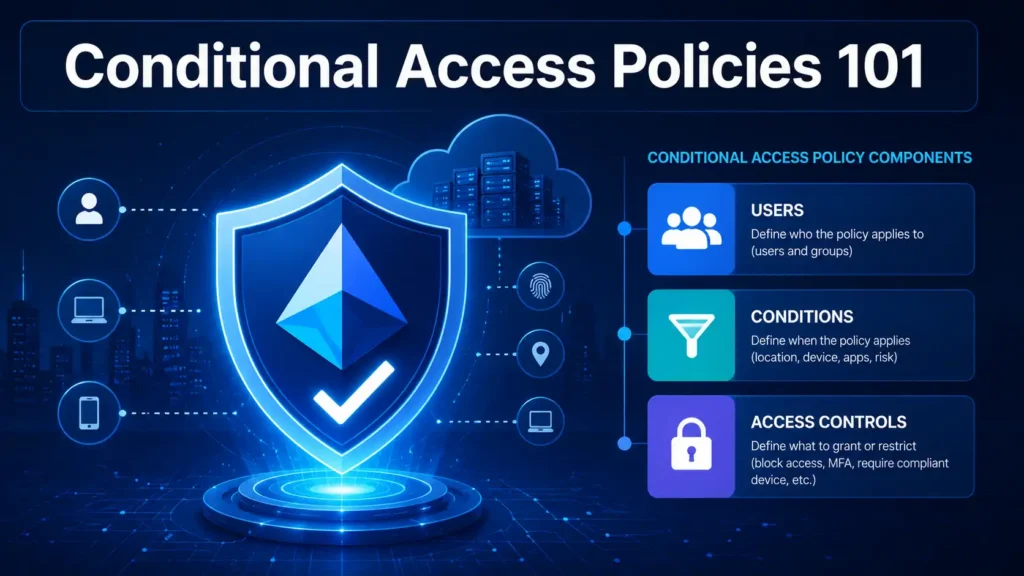
This is where you define who this Conditional Access policy applies to. The goal is to apply it to everyone except the absolute necessities.
- Include: Select All users.
- Exclude: This is the critical section for any Conditional Access policy.
- Check Users and groups.
- Select your Emergency Break-Glass accounts. Do not skip this—a Conditional Access policy that locks out all admins is a disaster.
- Important: You should also exclude your Entra ID Connect Sync service account if it uses a user principal for directory synchronization, though Microsoft recommends moving this to an Azure AD Application Authentication service principal.
- Caution: Do not exclude a large group of general users “just in case.” The goal of this Conditional Access policy is to enforce security, and the report-only mode (next step) will protect you from mistakes.
Step 4: Configure Target Resources (Cloud Apps)
- Under Cloud apps or Target resources, select All cloud apps.
- Why? Even if a legacy protocol connects to Exchange Online, blocking it via a Conditional Access policy that covers all cloud apps is more robust. It prevents attackers from using legacy auth to pivot to other services like SharePoint Online or Azure Resource Manager.
- Exception: If you know a specific LOB app (not including Exchange) needs legacy auth, you could technically exclude that specific app from the Conditional Access policy here, but this defeats the purpose. Migration is preferable.
Step 5: Configure Conditions (The Core of the Block)
- Under Conditions, locate Client apps. Set the toggle to Yes.
- Under Select the client apps this Conditional Access policy applies to, you have two main boxes to check:
- Exchange ActiveSync clients
- Other clients (This is the catch-all for IMAP, POP3, SMTP, MAPI, EWS, RPC, etc.)
- Important Configuration Note: You will also notice options for “Browser” and “Mobile apps and desktop clients.” Do not select these. Doing so would block modern applications like the new Outlook, Teams, and Edge, which is not your intention. You are specifically targeting Only the two options mentioned above (Exchange ActiveSync and Other clients) in this Conditional Access policy.
Step 6: Configure Access Controls (The Action)
- Under Grant, select Block access.
- Ensure you click Select. This is the action that will ultimately block legacy authentication once enforced.
Step 7: Enable Policy Mode
- Under Enable policy, toggle it to Report-only.
- Do not set it to “On” yet. We are going to meticulously validate this Conditional Access policy first.
Testing with Block Legacy Authentication Report-Only Mode
Creating the Conditional Access policy in Report-Only mode is the most critical safeguard in this process. This is where you use Entra ID’s intelligence to understand the impact before you block legacy authentication in production.
Step 1: What Report-Only Actually Does
When the Conditional Access policy is in Report-Only, Entra ID evaluates the request just as it would if the policy were enforced. However, instead of denying the request, it allows it and logs the result to the sign-in logs. It effectively says, “We would have blocked this legacy authentication attempt, but we let it through for now to test the Conditional Access policy.”
Step 2: Analyzing the Report-Only Results
- Return to Conditional Access > Policies.
- Click on your
Block Legacy Authentication - MandatoryConditional Access policy. - Navigate to the Report-only tab. Here, you will see a dashboard showing:
- Users affected: How many unique users attempted legacy authentication in the selected time frame.
- Total attempts: The raw number of legacy auth hits.
- Applications targeted: Which apps (usually Exchange Online) are being queried.
Step 3: Using the “What-If” Tool
Before you even roll out the Conditional Access policy, use the What-If tool in Conditional Access.
- Go to Conditional Access > What-If.
- Select a user and a condition. For the “Client apps,” select “Exchange ActiveSync” or “Other clients.”
- The tool will simulate the Conditional Access policy assignment and tell you whether access would be blocked.
- I recommend testing this with a wide variety of user types (e.g., standard employees, executives, service accounts) to ensure exclusions are correctly applied in your Conditional Access policy.
Step 4: Interpreting the Data
Let us interpret typical scenarios you might see in the Report-Only logs:
- Scenario A: You see 10 users attempting legacy authentication, all originating from the corporate office IP. This suggests they might be using an old version of Outlook or a misconfigured desktop client. You will need to reach out to these users to update their software before you block legacy authentication.
- Scenario B: You see hundreds of attempts from IP addresses in different continents. These are likely brute-force attacks. This confirms the immediate need for the Conditional Access policy to block legacy authentication.
- Scenario C: You see a specific service account (like your multifunction printer) making SMTP AUTH attempts. This is your prompt to migrate the printer to use the Microsoft 365 SMTP relay service (which does not require legacy authentication if properly configured) before you block legacy authentication.
Pro Tip: Leave the Conditional Access policy in Report-Only for a minimum of 7 days. This gives you a full business cycle to catch weekend jobs and monthly reporting scripts that might run infrequently. Rushing this step is the leading cause of post-enforcement business disruption when you finally block legacy authentication.
Switching to Enforcement and Handling Exceptions
After your monitoring period is complete and you are confident you have addressed the necessary exceptions, it is time to enforce the Conditional Access policy and block legacy authentication for real.
Step 1: Flip the Switch
- Navigate back to your Conditional Access policy.
- Toggle the Enable policy setting from Report-only to On.
- Click Save. The Conditional Access policy will now block legacy authentication for all targeted users.
Step 2: Immediate Verification
Within minutes, users and applications attempting to connect via legacy protocols will see Access denied errors. Specifically, legacy SMTP clients will receive a 535 5.7.139 Authentication unsuccessful error. ActiveSync clients will show an “Access Denied” message in the mail app. This confirms that your Conditional Access policy is working to block legacy authentication.
Step 3: Handling Rapid “Blocked” Alerts
If a critical process breaks immediately after enforcement:
- Do not panic.
- Log in to your excluded break-glass account.
- Navigate back to the Conditional Access policy.
- Add the specific user or service account to the Exclude list temporarily.
- This gives you breathing room to implement a proper migration for that service rather than leaving the business stalled while you try to block legacy authentication perfectly.
Step 4: Rely on the Global Exclusion for Critical Dependencies
Remember, some critical Microsoft services depend on legacy endpoints. For instance, if you use Microsoft Entra Connect for password hash synchronization, it does not use legacy authentication for that specific function. However, service principals might. Always check your Service Principals section in the Entra ID blade to ensure no critical applications are using legacy credentials before you block legacy authentication completely.
Legacy Authentication Migration Strategies for IT Admins
Now that we have successfully enforced the Conditional Access policy to block legacy authentication, we must address the elephant in the room: How do we make the excluded services function again without turning off security?
This is the most critical section for maintaining operational continuity. You cannot just block legacy authentication and walk away; you must provide a modern alternative. Here are the proven strategies for migrating the most common legacy auth use cases.
Strategy 1: Migrating Authenticated SMTP (SMTP AUTH)
This is the most common headache. You have a printer that needs to scan to email, or a legacy application that sends out notifications. Your Conditional Access policy will block legacy authentication for these unless you migrate.
- Option A (The Best): Use Microsoft 365 SMTP Relay without SMTP AUTH.
- You can bypass SMTP AUTH by using a specific connector. If the device sends email internally within the organization, you can configure it to send directly to
contoso-com.mail.protection.outlook.comusing port 25, without authentication, provided the device’s IP address is added to the connection filter policy. - How-to: Navigate to Exchange Admin Center → Mail flow → Connectors. Create a new connector from “Your organization’s email server” to “Microsoft 365.” Set the source IP to your on-premises server/public printer IP. This allows you to block legacy authentication for SMTP while keeping printers working.
- You can bypass SMTP AUTH by using a specific connector. If the device sends email internally within the organization, you can configure it to send directly to
- Option B (The Secure Modern Way): Use OAuth 2.0.
- For applications that support it, switch to using OAuth 2.0 client credentials grant flow. Instead of a user/password, the application uses a client ID and secret to authenticate to Entra ID.
- Microsoft Graph API is the preferred method for sending emails (
POST /users/{id}/sendMail). - For printers, many modern models now support OAuth 2.0 in their firmware. Update your firmware and register the printer as an application in Azure AD. This ensures you can block legacy authentication without losing print-to-email functionality.
Strategy 2: Migrating Exchange Web Services (EWS)
Many custom PowerApps, migration tools (like BitTitan MigrationWiz), and Azure Logic Apps use EWS. Your Conditional Access policy will block legacy authentication for these if not migrated.
- The Fix: Migrate these applications to Microsoft Graph API.
- Graph API is the modern unified endpoint. Instead of connecting to
/EWS/Exchange.asmx, you usehttps://graph.microsoft.com/v1.0/me/messages. - All modern programming languages (Python, C#, Node.js) have SDKs to handle Graph authentication via OAuth.
- If you are using Outlook add-ins that rely on EWS, update them to the Outlook Web Add-ins model, which uses modern OAuth tokens. This allows you to block legacy authentication for EWS safely.
- Graph API is the modern unified endpoint. Instead of connecting to
Strategy 3: Upgrading Mobile Devices (ActiveSync)
If your Report-Only logs show many users connecting via native iOS Mail or Android Gmail apps, your Conditional Access policy will block legacy authentication for these users.
- The Fix: Deploy the Microsoft Outlook Mobile App.
- This app natively supports Modern Authentication and Conditional Access.
- Use a mobile device management (MDM) policy (like Intune) to enforce the use of Outlook. You can create an App Protection Policy that restricts access to only the Microsoft Outlook app, effectively blocking the native mail clients. This ensures you can block legacy authentication without impacting mobile productivity.
Strategy 4: Upgrading Desktop Outlook Clients
If you are blocking MAPI or Outlook Anywhere, your Conditional Access policy will block legacy authentication for older Outlook clients.
- The Fix: Update Outlook to Microsoft 365 Apps (formerly Office 365 ProPlus) or Outlook 2021.
- Ensure the Windows Registry key
EnableADALis set to1on the clients. - Ensure the registry key
DisableADALatopWAMOverrideis set to0. - If the version is older than Outlook 2016, an upgrade is mandatory. Microsoft ended support for Outlook 2013 and older, meaning they are not only security risks but also unsupported by modern Exchange Online endpoints. This is a prerequisite to safely block legacy authentication.
- Ensure the Windows Registry key
Best Practices for Maintaining a Legacy-Free Environment
After you have enforced the Conditional Access policy and block legacy authentication, maintaining this security posture requires vigilance. Here are the best practices to ensure your Conditional Access policy continues to block legacy authentication effectively.
| Best Practice | Why It Matters |
|---|---|
| Enable “Authentication Strength” policies | To enforce phishing-resistant MFA (like FIDO2) exclusively on modern clients, further hardening the tenant. This complements your decision to block legacy authentication. |
| Use “Device Compliance” checks | Combine the legacy auth block with “Require device to be marked as compliant” to ensure only managed devices have access. Your Conditional Access policy can block legacy authentication while also enforcing device trust. |
| Audit sign-ins weekly | Use the Entra ID sign-in logs filter for “Client App” to spot any new legacy attempts that might indicate shadow IT or new applications. This ensures you continue to block legacy authentication for all new threats. |
| Revoke legacy app permissions | Go to Enterprise Applications and audit any service principals that have permissions to read or send mail. Remove any applications that are no longer used. This reduces the attack surface after you block legacy authentication. |
| Educate your helpdesk | Train your helpdesk to recognize the error “AADSTS53003” or “Access denied due to Conditional Access policy” so they can quickly diagnose if a user is blocked and determine whether it is a legitimate block or an application problem. This is critical after you block legacy authentication. |
Frequently Asked Questions (FAQs)
Q1: Will blocking legacy authentication affect my ability to use PowerShell?
- A: It depends. The Azure AD PowerShell module (MSOnline) uses legacy authentication and will be blocked by your Conditional Access policy. You must migrate to the Microsoft Graph PowerShell SDK, which uses modern OAuth tokens. This ensures you can block legacy authentication without losing automation capabilities.
Q2: What about guest users (B2B) from external tenants?
- A: Conditional Access policies apply to external B2B users as well if they access your resources. They will be blocked from using legacy protocols. This is generally desirable, but you should inform your external partners to use modern authentication before you block legacy authentication.
Q3: Is it possible to block legacy authentication globally without Conditional Access?
- A: Yes. You can enable Security Defaults in Entra ID. However, this is an all-or-nothing approach that also forces MFA registration for all users. It lacks the granularity of a custom Conditional Access policy. For most organizations, a tailored Conditional Access policy is the better way to block legacy authentication.
Q4: How do I check if a user was successfully authenticated using a legacy protocol before I blocked it?
- A: In the Entra ID sign-in logs, look for the Client App column. If you see “IMAP4” or “SMTP” and the status is “Success,” that authentication bypassed MFA. This is the data you should use to prioritize your migration efforts before you block legacy authentication.
Q5: Does this block the Apple Mail app on iOS?
- A: Yes, if the Apple Mail app is not configured to use modern authentication. Newer iOS versions can be configured for OAuth, but historically, many users set them up with basic authentication. Encourage the switch to Outlook Mobile so you can block legacy authentication without impacting iOS users.
Q6: Can I create multiple Conditional Access policies to block legacy authentication for different groups?
- A: Yes. You can create separate Conditional Access policies for different user groups (e.g., a stricter policy for administrators). However, a single well-configured Conditional Access policy to block legacy authentication for all users is usually sufficient.
Q7: What happens to conditional access if I block legacy authentication?
- A: Conditional Access policies are only evaluated on modern authentication flows. When you block legacy authentication, you ensure that all authentication requests are evaluated by your Conditional Access policies, strengthening your overall security posture.
Conclusion and Next Steps
Block legacy authentication is not just a security checkbox—it is a fundamental shift in how your organization approaches identity security. By implementing the Step-by-Step Conditional Access Policy Configuration we detailed today, you are closing the most frequently exploited attack vector in modern cloud environments. When you block legacy authentication, you eliminate the primary pathway for credential stuffing and password spray attacks.
To summarize the journey:
- You audited your environment to understand the legacy protocols in use.
- You migrated critical services (like SMTP and EWS) to modern OAuth alternatives.
- You configured the Conditional Access policy with precise exclusions for break-glass accounts.
- You tested the Conditional Access policy using Report-Only mode and the What-If tool.
- You enforced the Conditional Access policy with confidence to block legacy authentication.
Remember, security is a continuous journey. The threat landscape evolves, but eliminating basic authentication from your tenant is a permanent victory. When you block legacy authentication, you ensure that every authentication request to your tenant is subject to the full spectrum of your Identity Protection and Conditional Access intelligence. Your Conditional Access policy becomes the cornerstone of your zero-trust architecture.
Ready to take your Entra ID security further? Check out our detailed guides on [Configuring Entra ID Identity Protection Policies] and [Implementing Zero Trust with Continuous Access Evaluation (CAE)]
Explore more on Byqus Tutorials and Entra ID / Identity Section.