The Complete Guide to Phishing-Resistant Authentication in Entra ID
What Is Phishing-Resistant Authentication?
Imagine this scenario: A user receives an email that appears to be from your IT helpdesk. It asks them to verify their credentials by clicking a link and signing in to a convincing replica of your corporate login page. The user complies. Within minutes, an attacker has their username, password, and even their one-time passcode (OTP). The attacker signs in as the user, and your MFA never stopped them.
This is the reality of modern phishing attacks. Traditional MFA—SMS codes, voice calls, and even time-based one-time passwords (TOTP)—can be intercepted, stolen, or relayed in real time by sophisticated adversary-in-the-middle (AiTM) attacks. The problem isn’t that MFA doesn’t work; it’s that many MFA methods rely on shared secrets that can be captured and reused.
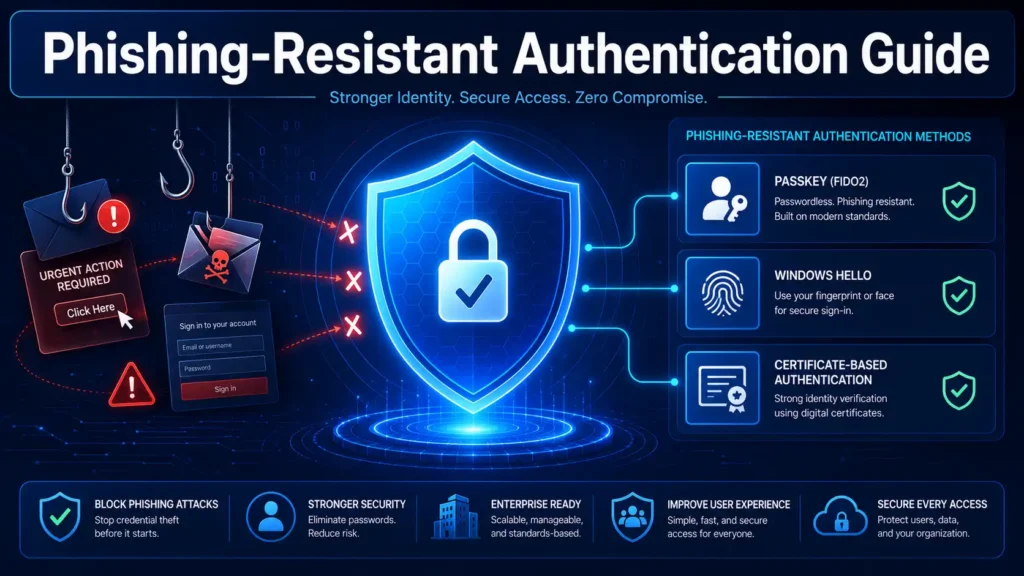
Phishing-resistant authentication solves this problem. It uses cryptographic credentials that are bound to a specific device and never transmitted over the network. Even if a user is tricked into visiting a fake login page, the attacker cannot intercept or replay the credentials because they are never shared. This approach is the gold standard for identity security.
Microsoft Entra ID offers several options to achieve this, including passkeys (FIDO2), Windows Hello for Business, and certificate-based authentication (CBA). These methods use public-key cryptography and hardware-backed credentials that cannot be easily compromised. To enforce these methods across your organization, you’ll need to configure Conditional Access policies with the appropriate authentication strengths.
Explore more on Byqus Tutorials and Entra ID / Identity Section.
Why Phishing-Resistant Authentication Is Non-Negotiable
The threat landscape has evolved. Attackers are no longer just guessing passwords; they are using sophisticated techniques to bypass MFA entirely. Here is why adopting a phishing-resistant approach is no longer optional:
- Adversary-in-the-middle (AiTM) attacks: Attackers set up proxy servers that sit between the user and the legitimate login page. They capture the session token in real time and use it to authenticate as the user—bypassing OTP-based MFA completely.
- Credential replay attacks: Even if a user’s password is captured, attackers can use it across multiple services. Phishing-resistant authentication eliminates this risk because the credential is device-bound and cannot be reused elsewhere.
- Regulatory and compliance mandates: Frameworks like NIST SP 800-63-3 and CISA’s Zero Trust Maturity Model explicitly recommend phishing-resistant MFA for high-privilege accounts and sensitive data access.
- Microsoft’s strategic direction: Microsoft has announced that passkeys will become the default authentication method for Entra ID starting September 1, 2026. On February 1, 2027, Microsoft will retire SMS and voice authentication as native Entra features. The message is clear: phishable methods are being phased out.
Organizations that delay moving to a phishing-resistant model expose themselves to increasingly sophisticated attacks while falling behind on compliance and security best practices. When combined with device compliance with Conditional Access and blocking legacy authentication, phishing-resistant MFA creates a comprehensive defense against identity-based threats.
Phishing-Resistant Authentication Methods in Entra ID
Microsoft Entra ID provides four primary methods that deliver phishing-resistant protection. Each offers a different balance of security, user experience, and deployment complexity.
Passkeys (FIDO2)
Passkeys are the modern standard for phishing-resistant security. They use public-key cryptography, with the private key stored securely on the user’s device and never transmitted. Authentication requires a biometric or PIN gesture to unlock the key.
Passkeys provide several advantages:
- Cross-device support: Users can create passkeys on one device and use them across multiple devices through platform sync (Apple iCloud Keychain, Google Password Manager, Microsoft Authenticator).
- Frictionless experience: Analysis of Microsoft consumer accounts shows that sign-in with a password can take up to 24 seconds on average, but passkeys only take around 8 seconds in most cases—with synced passkeys taking just 3 seconds.
- Default going forward: Starting September 1, 2026, passkeys will become the default sign-in method for Entra ID users. Users currently enabled for SMS or voice authentication will be automatically enrolled in passkeys.
Windows Hello for Business
Windows Hello for Business is Microsoft’s device-bound phishing-resistant solution for managed Windows devices. It combines a device-specific credential with a biometric or PIN gesture.
Key features include:
- Two-factor authentication: Something the user has (the device) and something the user knows or is (PIN or biometric).
- Built-in brute force protection: Prevents attackers from guessing PINs or biometrics through repeated attempts.
- Recommended for managed devices: Microsoft recommends Windows Hello for Business as the authentication solution for managed, Entra-joined, or registered corporate devices.
Certificate-Based Authentication (CBA)
Certificate-based authentication uses X.509 certificates from your enterprise Public Key Infrastructure (PKI) to authenticate users. This is a proven, enterprise-grade phishing-resistant method that works seamlessly with Conditional Access policies.
CBA is particularly valuable for:
- Organizations with existing PKI infrastructure: Leverage your existing investment in certificate management.
- High-security environments: Certificates provide strong, verifiable identity assurance.
- Remote Desktop and legacy scenarios: CBA supports scenarios where passkeys or Windows Hello may not be available.
Microsoft Authenticator Passkeys
Microsoft Authenticator now supports passkeys, enabling phishing-resistant protection on mobile devices without requiring a separate FIDO2 security key. Users can create and store passkeys within the Authenticator app, providing a portable credential that works across devices.
This method is ideal for organizations with a bring-your-own-device (BYOD) policy, as it doesn’t require dedicated hardware keys while still providing phishing-resistant protection.
Understanding Authentication Strengths in Conditional Access
Once you’ve selected your phishing-resistant methods, you need to enforce them. Microsoft Entra ID provides three built-in authentication strengths in Conditional Access:
- Multifactor authentication strength: Requires any MFA method, including phishable options like SMS and voice.
- Passwordless MFA strength: Requires passwordless methods like passkeys or Windows Hello, but may include some non-phishing-resistant options.
- Phishing-resistant MFA strength: The most restrictive tier. Only accepts methods that are resistant to phishing attacks—specifically Windows Hello for Business, FIDO2 security keys, and certificate-based authentication.
The built-in phishing-resistant MFA strength includes methods that require an interaction between the authentication method and the sign-in surface. This ensures that credentials cannot be intercepted or replayed by an attacker.
You can also create custom authentication strengths if you need to require specific methods beyond the built-in options.
Step-by-Step Guide to Enforcing Phishing-Resistant Authentication
Ready to enforce phishing-resistant authentication in your tenant? Follow these steps to create a Conditional Access policy using authentication strengths.
Step 1: Access Conditional Access
- Sign in to the Microsoft Entra admin center as at least a Conditional Access Administrator.
- Browse to Entra ID → Protection → Conditional Access.
Step 2: Create a New Policy
- Click + New policy and give it a descriptive name, such as
Require Phishing-Resistant MFA. - Under Assignments → Users or workload identities:
- Include: Select All users.
- Exclude: Select your emergency access or break-glass accounts.
Step 3: Configure Target Resources
- Under Target resources → Resources (formerly cloud apps):
- Include: Select All resources (formerly “All cloud apps”).
Step 4: Configure Authentication Strength
- Under Access controls → Grant:
- Select Grant access.
- Select Require authentication strength.
- Choose Phishing-resistant MFA strength from the dropdown.
- Select Require all the selected controls.
Step 5: Enable in Report-Only Mode
- Set Enable policy to Report-only to test first.
- Click Create to save the policy.
Step 6: (Optional) Apply to Guest Users
You can also enforce a phishing-resistant approach for external users. Create a separate policy targeting guest users, requiring the phishing-resistant MFA strength. This ensures that your external collaborators meet the same high security standards.
Phased Rollout and Testing Your Policy
Enforcing a phishing-resistant approach is a significant change for your users. A phased rollout approach ensures a smooth transition.
Using Report-Only Mode
Start by enabling your policy in Report-Only mode. This allows you to:
- Identify affected users: See how many users would be required to use phishing-resistant methods.
- Detect registration gaps: Identify users who haven’t registered any phishing-resistant method.
- Validate policy behavior: Ensure the policy applies correctly to your intended users and resources.
Phased Rollout Plan
Consider rolling out a phishing-resistant model in phases:
- Pilot group: Start with a small group of IT staff and early adopters.
- High-privilege users: Enforce for administrators and users with access to sensitive data.
- All users: Gradually expand to the entire organization.
Microsoft recommends using the Conditional Access What-If tool to simulate policy impact before enforcement. This tool allows you to test how the policy applies to specific users, devices, and scenarios.
User Communication
Communicate with users before enforcement:
- Notify them of the upcoming change and the timeline.
- Provide clear instructions on how to register a phishing-resistant method.
- Offer support channels for users who encounter issues.
Prerequisites and Licensing
Before implementing a phishing-resistant approach, ensure you meet these requirements:
| Requirement | Details |
|---|---|
| Microsoft Entra ID License | Microsoft Entra ID Premium P1 or higher is required for Conditional Access and authentication strengths. |
| Administrative Role | Conditional Access Administrator is the least privileged role required to create or edit policies. |
| Phishing-Resistant Method Registration | Users must register a phishing-resistant method before the policy is enforced. |
| Device Requirements | FIDO2 security keys require USB or NFC support. Windows Hello requires compatible hardware (camera for facial recognition or fingerprint reader). |
Best Practices for Phishing-Resistant Authentication
To maximize the effectiveness of phishing-resistant authentication, follow these best practices:
| Best Practice | Why It Matters |
|---|---|
| Start with high-privilege accounts | Administrators are prime targets for phishing attacks. Enforce phishing-resistant MFA for all admin roles first. |
| Use the built-in phishing-resistant MFA strength | Microsoft’s built-in authentication strength is curated to include only methods that are truly phishing-resistant. |
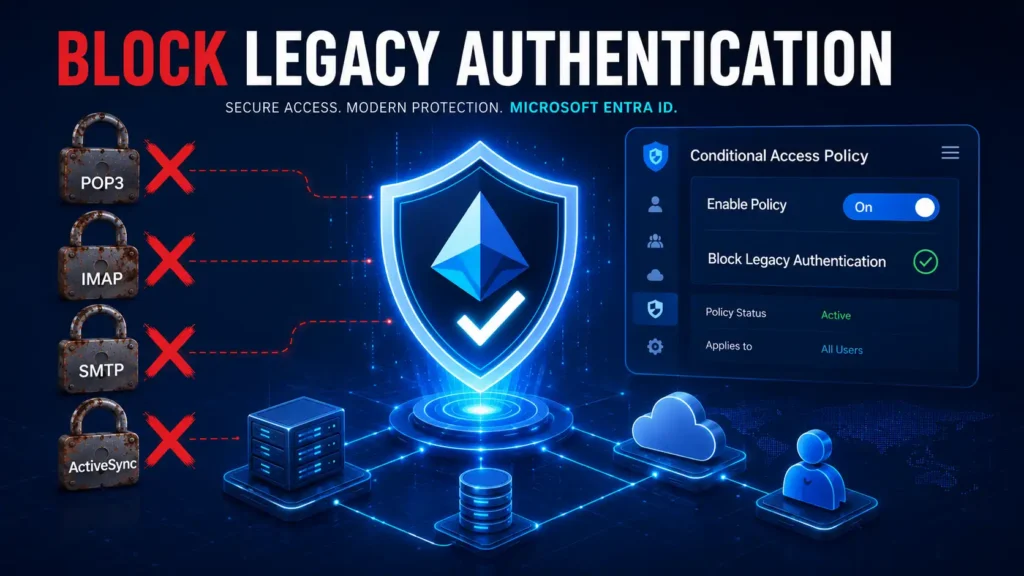
| Block legacy authentication | Combine phishing-resistant MFA with a policy that blocks legacy authentication (IMAP, POP3, SMTP). |
| Provide multiple phishing-resistant options | Offer users a choice between passkeys, Windows Hello, and security keys to accommodate different device scenarios. |
| Monitor sign-in logs | Regularly review sign-in logs to identify users who are still using phishable methods. |
| Use the Impact Analysis workbook | Microsoft provides an Impact Analysis workbook under Identity Protection to understand your environment before enabling policies. |
Frequently Asked Questions (FAQs)
Q1: What authentication methods are considered phishing-resistant in Entra ID?
- A: Microsoft Entra ID considers passkeys (FIDO2), Windows Hello for Business, and certificate-based authentication (CBA) as phishing-resistant methods.
Q2: When will passkeys become the default in Entra ID?
- A: Passkeys will become the default sign-in method for Entra ID users starting September 1, 2026. On February 1, 2027, Microsoft will retire SMS and voice authentication.
Q3: What license do I need to enforce phishing-resistant authentication?
- A: You need Microsoft Entra ID Premium P1 or higher for Conditional Access and authentication strengths.
Q4: Can I use phishing-resistant authentication with guest users?
- A: Yes. You can create a Conditional Access policy that requires phishing-resistant MFA for guest and external users.
Q5: What happens if a user hasn’t registered a phishing-resistant method?
- A: When the policy is enforced, users who haven’t registered a phishing-resistant method will be blocked from accessing resources. They will be prompted to register a method during their next sign-in attempt.
Q6: Are SMS and voice MFA going away?
- A: Yes. On February 1, 2027, Microsoft will retire SMS and voice authentication as native Entra features. Organizations should begin migrating to phishing-resistant methods now.
Q7: What is the difference between Passwordless MFA strength and Phishing-resistant MFA strength?
- A: Passwordless MFA strength includes passwordless methods but may include some non-phishing-resistant options. Phishing-resistant MFA strength is the most restrictive tier, only accepting methods that are resistant to phishing attacks.
Q8: Can I create a custom authentication strength?
- A: Yes. You can create custom authentication strengths based on the authentication methods you want to require.
Conclusion: Future-Proof Your Identity Security
Phishing-resistant authentication is no longer a future aspiration—it’s a present necessity. With Microsoft making passkeys the default authentication method for Entra ID and retiring phishable SMS and voice MFA, the industry is moving decisively toward phishing-resistant identity security.
In this comprehensive guide, we covered:
- What phishing-resistant authentication is and why it’s essential for modern identity security
- The four phishing-resistant methods available in Entra ID: passkeys (FIDO2), Windows Hello for Business, certificate-based authentication, and Microsoft Authenticator passkeys
- Authentication strengths in Conditional Access and how to enforce phishing-resistant MFA
- A complete step-by-step guide to creating and enforcing a phishing-resistant authentication policy
- Phased rollout strategies and testing approaches to ensure a smooth transition
- Licensing requirements, best practices, and FAQs
The timeline is clear: September 1, 2026—passkeys become the default. February 1, 2027—SMS and voice MFA are retired. Organizations that act now will have a smooth transition. Those that delay will face a scramble to migrate users before the deadline.
Start today. Enable phishing-resistant authentication for your high-privilege users, communicate the change to your organization, and begin the phased rollout. Your users will appreciate the frictionless experience, and your security team will sleep better knowing that even the most sophisticated phishing attacks won’t compromise your identities.
If you haven’t already implemented risk-based Conditional Access policies, consider combining them with your phishing-resistant MFA policy for even stronger protection. Automated risk remediation ensures that compromised accounts are quickly identified and secured.
Remember: phishing-resistant authentication works best when combined with other Zero Trust controls like device compliance, location-based policies, and legacy authentication blocking. Build your defense-in-depth strategy one policy at a time.
Explore more on Byqus Tutorials and Entra ID / Identity Section.