Device Administration in Microsoft Entra ID / cloud is often misunderstood, especially by administrators who are moving from traditional on-premises Active Directory environments.
In on-prem setups, things were straightforward. When a computer joined the domain, it was automatically managed. Group Policies applied, administrative access was clearly defined, and device visibility almost always meant device control. Over time, this created a natural assumption: if I can see the device, I must be managing it.
That assumption doesn’t hold true in the cloud.
With Microsoft Entra ID, devices can appear in the tenant through very normal user actions — signing in to Microsoft 365, adding a work account in Windows, or even creating a work profile in a browser. Later, when administrators notice these devices listed in the Entra tenant, it’s easy to assume that those devices are already managed or governed in some way.
They aren’t.
Another common misconception is around device join. Many administrators expect that joining a device to Entra ID automatically gives users administrative access, similar to how some on-prem environments behaved in the past. When users then discover they can log in but cannot install software or change system settings, confusion naturally follows.
[wpcode id=”1760″]
Both of these assumptions are incorrect, and the reason is simple: Microsoft Entra ID is an identity platform, not a device management platform.
This guide breaks down what device administration really means in Microsoft Entra ID. We’ll clearly separate identity from enforcement, explain how devices are registered or joined, how trust is established, and why users are not local administrators by default. Most importantly, we’ll look at what Entra ID can and cannot control on a device.
To keep the foundation clear, this guide intentionally does not introduce Microsoft Intune. The goal is to first understand Entra ID on its own — before adding management, policies, and compliance into the picture.
By the end of this guide, you’ll have a practical, real-world understanding of how devices, trust, and local administration work in Entra ID, and why in a cloud-first model, visibility should never be confused with management.
Explore more in Entra ID/Identity Series
Device Administration in Microsoft Entra ID
[wpcode id=”1759″]
What Is Device Administration?
Device administration is often misunderstood as the process of configuring system settings, applying security rules, or enforcing policies. In reality, those activities come later. At its core, device administration is about identity and access, not configuration.
The primary purpose of device administration is to answer two fundamental questions. First, who is allowed to sign in to a device? Second, who is allowed to administer that device? Everything else—policies, compliance checks, and security enforcement—is built on top of these two decisions.
Before any device can be managed, it must be trusted. That trust begins with identity. The system must know which user is signing in and whether the device itself is recognized. Without this identity foundation, enforcing rules or applying configurations would be unreliable and insecure.
This is why administration always starts before enforcement. You cannot control a device unless you first understand who is using it and what level of access they should have. A user signing in as a standard user has very different permissions than a local administrator, even though both may be using the same device.
Configuration, enforcement, and compliance are important, but they are secondary layers. They depend on identity decisions that have already been made. In modern cloud environments, especially with platforms like Microsoft Entra ID, device administration focuses on establishing trust and access first. Only after that foundation is in place does true device management begin.
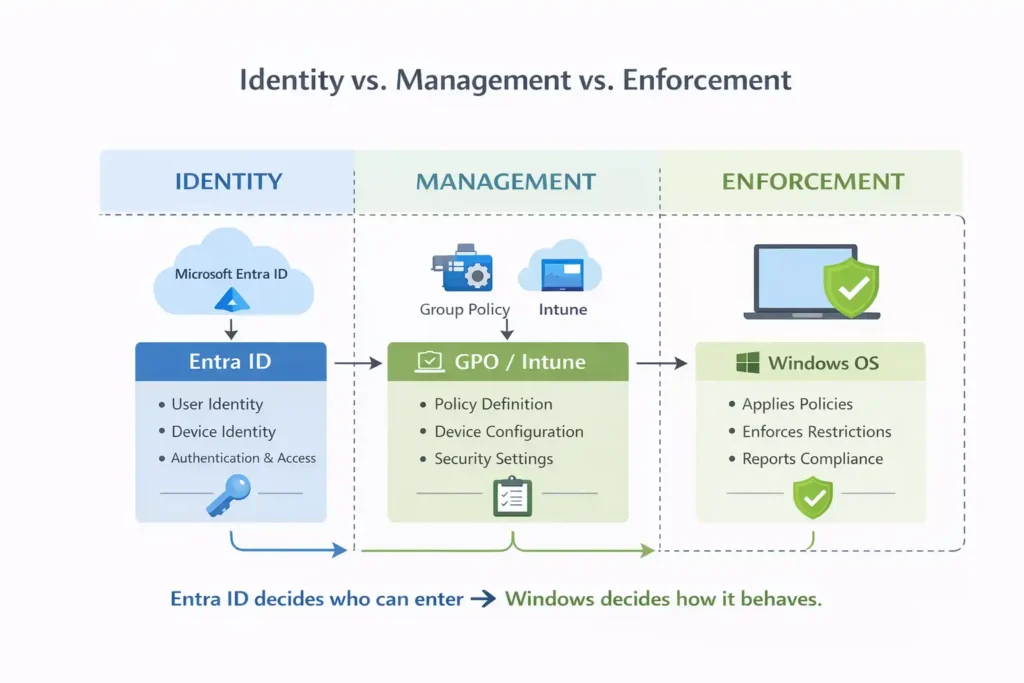
In simple terms, administration defines access; management enforces behavior.
The Role of Microsoft Entra ID
Microsoft Entra ID is a cloud-based identity and access platform that sits at the center of modern authentication. Its primary role is to establish who a user is, which device they are using, and whether that combination should be trusted to access organizational resources.
At its core, Entra ID is responsible for managing user identities, group memberships, and device identities. When a user attempts to sign in, Entra ID handles authentication, verifies credentials, and performs authorization to determine what the user is allowed to access. It also maintains the trust relationship between users and devices, which becomes critical in cloud-first and remote work scenarios.
This trust does not mean control. It means visibility and decision-making at the access level. Entra ID can identify a device, understand its relationship with a user, and use that information to allow or deny access to applications and services.
What Entra ID deliberately does not do is equally important to understand. It does not enforce operating system policies, control device configuration, manage applications, or decide how the operating system behaves. Those responsibilities belong to device management and policy enforcement tools, not to the identity platform itself.
In simple terms, Microsoft Entra ID is about access, not management. It decides who can get in and from where, but it does not decide how the device should be configured or controlled once access is granted.
[wpcode id=”1757″]
How Devices Appear in Entra ID (Often Unexpectedly)
Many administrators are surprised when they open the Entra ID portal and see devices listed that were never formally joined, deployed, or managed by IT. This often leads to questions such as: Who added these devices? or Why are these devices visible if we are not managing them?
The answer lies in how device registration works in Microsoft Entra ID.
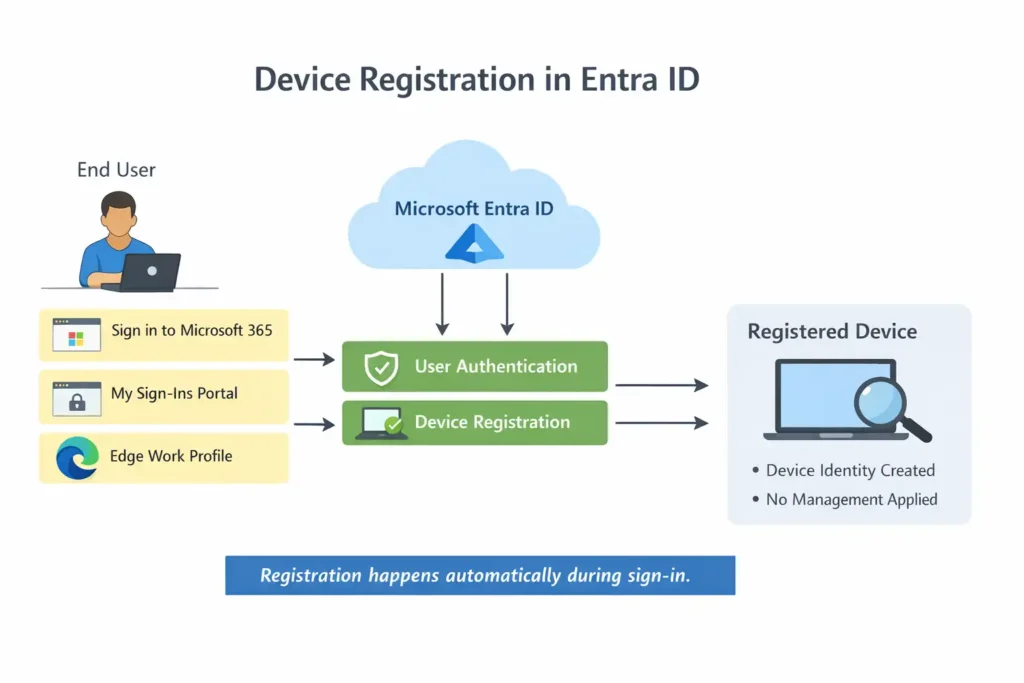
In a cloud-first identity model, devices can become known to Entra ID through everyday user sign-in activities. When users authenticate with their work or school account, Entra ID may register the device as part of the sign-in process. This registration is automatic and does not require administrative approval or device management tools.
Common scenarios that can trigger device registration include signing in to Microsoft 365 through a web browser, logging in to the My Sign-Ins portal, creating a work profile in Microsoft Edge, or adding a Work or School account in Windows settings. In each of these cases, the user is simply accessing organizational resources, yet the device becomes associated with their identity.
It is important to understand that this behavior does not mean the device is joined to Entra ID or managed by the organization. Registration only establishes identity awareness. The device is visible, identifiable, and linked to a user, but it remains unmanaged unless additional steps are taken.
This distinction explains why devices often appear “unexpectedly” in Entra ID and why visibility should never be confused with control or management.
Entra ID Registered Devices
What Is a Registered Device?
A Registered device in Microsoft Entra ID is typically:
- Personally owned (BYOD)
- Lightly trusted
- Associated with a user identity
Registration means:
- Entra ID knows this device exists
- The device is linked to a specific user
- No operating system–level control is established
A registered device is best understood as an identity-aware device, not a managed one. The device becomes visible to Entra ID because a user signed in using their work or school account, often through a browser, an application, or Windows account settings. This allows Entra ID to recognize the device during authentication and make access decisions based on that awareness.
However, registration does not change how the device behaves. The organization does not gain administrative access, policies are not enforced, and the operating system remains fully under the user’s control. Registration simply establishes a lightweight trust relationship between the user and the device, which can later be used for access decisions or conditional access scenarios.
In short, a registered device provides visibility and identity association, but it does not provide management or control.
What Registration Does NOT Mean
Registered devices:
- ❌ Are not joined to Entra ID
- ❌ Are not managed
- ❌ Do not receive policies
- ❌ Do not grant admin rights
Registration is identity awareness only.
Entra ID Joined Devices
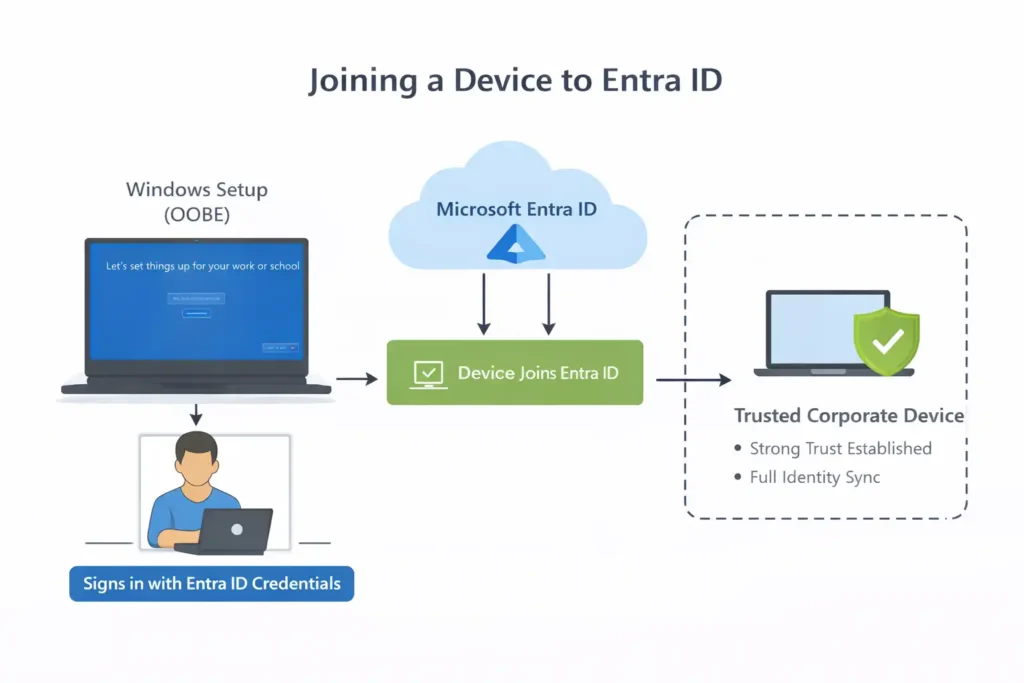
An Entra ID Joined device is:
- Organization-owned
- Joined directly to Microsoft Entra ID
- Typically joined during Windows setup (Out-of-Box Experience, or OOBE)
During setup, the user signs in with their Entra ID credentials. As a result, the device becomes a trusted corporate device that is fully recognized by the organization’s identity platform.
What Entra ID Join Provides
Entra ID join establishes a strong identity foundation for the device:
- Strong device identity
- High trust level
- A foundation for Conditional Access decisions
- Eligibility for centralized management at a later stage
This trust allows Entra ID to confidently associate the device with the organization and use that information during authentication and access decisions.
What It Still Does NOT Provide
Even when a device is Entra ID joined:
- Entra ID does not enforce policies
- Entra ID does not manage the operating system
- Entra ID does not configure security settings
Joining a device to Entra ID does not mean the device is managed or controlled. It simply establishes identity and trust. Device configuration, policy enforcement, and security controls require additional management layers beyond Entra ID.
In short, Entra ID join creates trust — not control.
[wpcode id=”1678″]
Hybrid Joined Devices
Hybrid joined devices are commonly found in organizations that are transitioning from traditional on-premises environments to the cloud. They represent a bridge between legacy infrastructure and modern identity platforms.
A Hybrid Joined device is:
- Joined to on-premises Active Directory
- Also registered with Microsoft Entra ID
This dual relationship allows the device to function in both worlds at the same time.
What This Model Allows
Hybrid join enables organizations to:
- Continue using legacy, domain-dependent applications
- Support cloud authentication and access through Entra ID
- Gradually migrate users and devices to a cloud-first identity model
Users can authenticate to both on-premises and cloud resources without disruption, making hybrid join a practical choice during periods of transition.
Important Perspective
Hybrid join is not a destination. It is a transition state designed to reduce friction while modernizing identity and access. Over time, as reliance on on-premises infrastructure decreases, organizations typically move toward cloud-only Entra ID joined devices for simplicity, security, and scalability.
In short, hybrid joined devices provide continuity today — while enabling transformation for tomorrow.
Understanding Policies: Where Confusion Begins
Policies define how a device behaves. They control things like:
- Password rules
- USB and removable storage restrictions
- Firewall settings
- Operating system update behavior
These settings directly affect the security and configuration of a device. Because of that, policies must always be enforced somewhere. Simply defining a policy is not enough — there must be a mechanism that applies and maintains it on the device.
Important Truth
Microsoft Entra ID does not enforce policies.
This is one of the most important concepts to understand when working with cloud identity.
Where Policy Enforcement Actually Happens
Policy enforcement is handled by other systems, depending on the environment:
- Group Policy in on-premises Active Directory environments
- Microsoft Intune for cloud-based device management
- Local operating system policies, configured manually on individual devices
These tools interact with the device and the operating system to apply and maintain settings.
The Role of Entra ID
Entra ID plays a supporting role in this process. It provides identity and trust context — information about the user, the device, and their relationship — which enforcement tools can use when deciding how and when to apply policies.
In simple terms, Entra ID informs policy decisions, but it never enforces them.
[wpcode id=”1677″]
Group Policy vs Intune (High-Level)
- Group Policy enforces settings in on-premises environments
- Intune enforces settings in cloud-first environments
- Entra ID is used by both for identity — but enforces nothing
Local Policies (Without GPO or Intune)
If neither Group Policy nor Intune is present, only local policies exist.
Local policies:
- Are configured manually
- Apply to a single device
- Are not centrally visible
- Do not scale
They are not suitable for enterprise environments.
Local Administrator Access: Default Behavior
One of the most important points to understand about device administration in Microsoft Entra ID is the default behavior around local administrator access.
Joining a device to Entra ID does NOT make the user a local administrator.
This often surprises administrators who are used to older on-premises models, but it is intentional and security-driven.
By default:
- Users sign in as standard users
- Administrative rights are not granted automatically
- The principle of least privilege is enforced
This design ensures that users only have the permissions they actually need to perform their daily work. Limiting administrative access reduces the risk of accidental misconfiguration, malware installation, and privilege abuse.
Entra ID treats administrative access as something that must be explicitly assigned, not assumed. This separation between identity and privilege is a key part of modern security architecture.
In short, Entra ID join establishes trust and identity — it does not grant elevated access by default.
Important Nuance: Local Administrators in Entra ID
This is the point where many misunderstandings occur, even among experienced administrators.
Microsoft Entra ID can play a role in local administration — but only in a very specific and limited way.
What Entra ID CAN Do
Entra ID can decide who becomes a local administrator on Entra ID–joined devices.
This includes identities such as:
- Global Administrators
- Members of the Device Administrators role
These users are automatically added to the local Administrators group on Entra ID–joined devices. This assignment happens as part of the identity and role mapping process and does not require Group Policy or Microsoft Intune.
[wpcode id=”1674″]
What Entra ID CANNOT Do
Entra ID cannot decide:
- What local administrators can configure on the device
- Which system settings they are allowed to change
- What restrictions or limitations apply to administrator actions
Those decisions are enforced by the operating system or by device management tools, not by Entra ID.
The Key Distinction
Entra ID decides who is an administrator.
Windows decides what an administrator can do.
No operating system policies or behavioral restrictions are enforced by Entra ID itself. It provides identity and role assignment — nothing more.
Understanding this distinction is critical to avoiding confusion between identity-based access and device management enforcement.
Where to See Your Devices
Admin View
Microsoft Entra admin center
→ Devices
→ All devices
User View
https://myaccount.microsoft.com
→ Devices
Registered devices will show as Registered.
Joined devices will show as Entra ID Joined.
Key Takeaways
- Device administration starts with identity
- Entra ID provides visibility and trust, not management
- Registration ≠ Join ≠ Management
- Users are not local admins by default
- Entra ID can assign admins, but cannot enforce behavior
What Comes Next?
This guide intentionally avoids Microsoft Intune.
In the next step, device administration moves from:
- Identity → Management
- Visibility → Enforcement
- Trust → Compliance
That is where Microsoft Intune enters the picture.
Final Thought
Entra ID knows who you are and what device you’re using —
but it never decides how that device behaves.
BYQUS YOUTUBE CHANNEL
🎥 Learn Visually on Our YouTube Channel
Watch detailed video tutorials on Microsoft 365, Entra ID, Azure, and Active Directory directly on our BYQUS YouTube Channel. Get real-world demonstrations, Hindi explanations, and step-by-step guidance from actual admin environments.
📌 Subscribe now and never miss a new IT tutorial — from cloud configuration to troubleshooting and interview preparation.
[wpcode id=”1680″]