Active Directory (AD) is at the heart of nearly every Windows-based enterprise network. It provides authentication, authorization, and centralized management for thousands of users, computers, and resources. But without a logical method of grouping and organizing these objects, AD can quickly become unwieldy. This is where the Organizational Unit (OU) plays a vital role.
An Organizational Unit in Active Directory is a logical container that lets administrators organize and manage directory objects in a way that reflects both operational and administrative needs. Imagine AD as a digital city: domains represent entire districts, while OUs are the neighborhoods that hold individual homes—users, computers, printers, and groups. Each neighborhood can have its own rules, governance, and managers without disrupting the broader district.
By leveraging OUs, you can:
• Delegate administrative authority safely to different departments.
• Apply targeted Group Policy Objects (GPOs) to manage configuration and security.
• Simplify day-to-day management tasks like password resets and user provisioning.
• Create a foundation for consistent security compliance and automation.
In this detailed guide, we’ll go beyond definitions. You’ll learn not only what an OU is, but why it’s indispensable, how to design one effectively, and how to avoid common pitfalls that lead to administrative chaos. Real-world examples and PowerShell commands are included to help you apply each concept immediately.
Series: Active Directory
Topics:
- Introduction to Active Directory (AD) | Active Directory Tutorial
- What Is a Forest in Active Directory? | Active Directory Tutorial
- What Is a Domain in Active Directory? A Complete Beginner-Friendly Guide
Organizational Unit in Active Directory
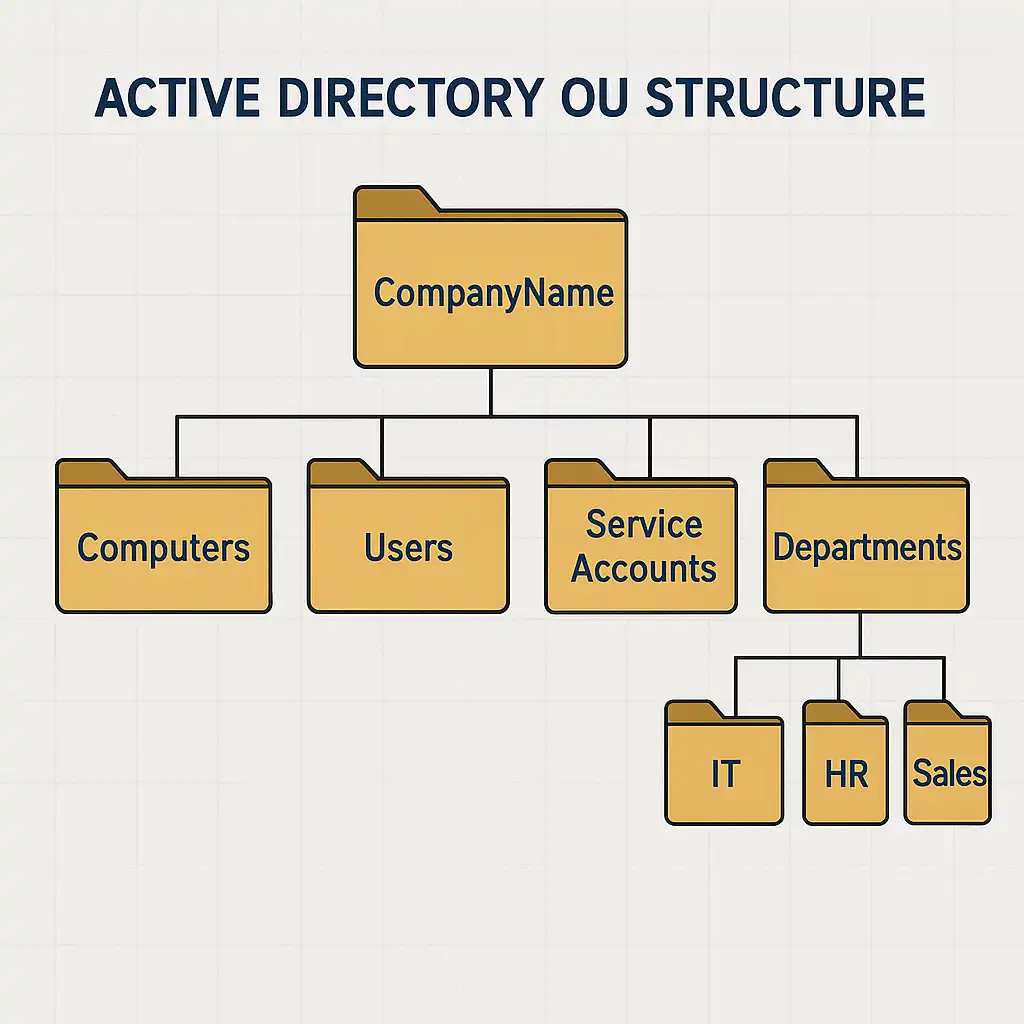
Active Directory OU Structure
When you think about an Organizational Unit in Active Directory, the easiest way to visualize it is as a folder within a larger filing cabinet—the domain. Inside this folder, you can place user accounts, computers, groups, and even other OUs, forming a tree-like hierarchy that mirrors your organization’s structure.
The OU structure defines how Active Directory objects are arranged, both logically and administratively. This structure doesn’t necessarily have to match your physical organization chart, but it often does for simplicity. For example, a multinational company might have separate OUs for each country or region, while within each regional OU, there could be sub-OUs for departments such as IT, HR, and Finance.
Each OU acts as a container that provides isolation, control, and manageability. Administrators can apply specific policies or delegate permissions to OUs without affecting others. This modularity is what makes Active Directory such a powerful tool for enterprise-scale management.
In practice, a well-designed OU structure supports scalability, minimizes administrative complexity, and enhances security. The general best practice is to design your OU structure based on administrative requirements rather than just the organizational chart. For instance, you might group systems that share the same management needs or security settings—like all domain controllers or workstations—under their own OUs.
A simple example:
- Top-level OU: CompanyName
- Sub-OU: Computers
- Sub-OU: Users
- Sub-OU: Service Accounts
- Sub-OU: Departments (IT, HR, Sales)
This allows different administrators to manage their own OUs independently, while the core IT team maintains oversight and consistency across the domain.
Now, let’s illustrate this concept visually.
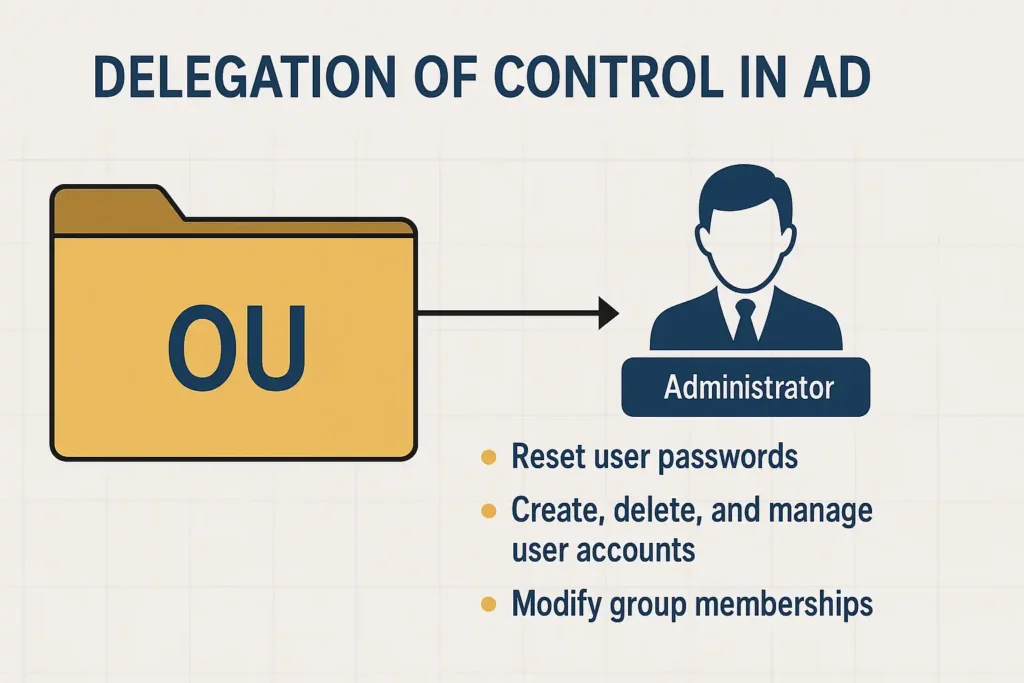
Delegation of Control in AD
Delegation of control is one of the most powerful and practical uses of Organizational Units in Active Directory. In large enterprises, it’s simply not feasible for a single IT administrator—or even a small centralized team—to handle all user account management, password resets, or group membership changes. This is where OUs truly shine: they enable you to distribute administrative tasks safely and precisely.
At its core, delegation of control means assigning specific administrative rights over an OU to certain users or groups without giving them full domain-level privileges. For example, you might delegate the HR department’s OU to HR support staff so they can reset passwords or update user details, while IT admins retain higher-level authority. This allows each team to manage its own resources efficiently without compromising domain security.
The Delegation of Control Wizard in the Active Directory Users and Computers (ADUC) console simplifies this process. It provides a guided interface to assign permissions like:
- Reset user passwords and force password change at next logon.
- Create, delete, and manage user accounts.
- Modify group memberships.
- Manage Group Policy links.
Behind the scenes, these delegated permissions are enforced through Access Control Lists (ACLs) applied directly to the OU. Every object in Active Directory has a security descriptor that determines who can do what with it. By modifying these permissions at the OU level, administrators can define granular control boundaries that automatically apply to all objects within the OU.
To verify delegated rights, you can inspect an OU’s Security tab in ADUC or use PowerShell. For example:
Get-Acl "AD:OU=HR,DC=example,DC=com" | Format-List
This command retrieves the access control list for the HR OU, showing which groups or users have delegated permissions.
Delegation isn’t just about convenience—it’s also about governance and accountability. A well-delegated environment reduces operational bottlenecks, improves user support response times, and prevents unnecessary elevation of privileges. When designed properly, delegation ensures that each administrator only has the authority necessary to perform their duties—nothing more.
Group Policy Management through OUs
One of the most significant advantages of using Organizational Units in Active Directory is how seamlessly they integrate with Group Policy Objects (GPOs). Group Policy is the mechanism that allows administrators to configure operating system settings, deploy software, enforce security standards, and control user environments across multiple computers—all from a central location.
When you link a Group Policy Object to an OU, all users and computers within that OU automatically inherit its settings. This relationship makes OUs the cornerstone of Group Policy management and allows organizations to enforce configurations precisely where they’re needed.
For instance, suppose your IT department wants to deploy a specific desktop wallpaper, restrict Control Panel access, and configure network drive mappings for all Finance department users. By linking a dedicated GPO to the Finance OU, you can achieve all of this without affecting users in other departments. This granular control ensures consistency while maintaining flexibility.
Here’s a quick example of how administrators often structure their GPOs and OUs:
- OU: Workstations
- Linked GPO: Baseline Security Policy
- OU: Finance Department
- Linked GPO: Finance User Configuration
- OU: IT Department
- Linked GPO: IT Admin Tools Deployment
This modular approach keeps policies organized and easy to troubleshoot. When conflicts arise—such as when multiple GPOs apply to the same object—the order of precedence and inheritance determines which settings take effect. Local policies are overridden by site, domain, and then OU-linked policies (with the closest OU taking priority).
You can view and manage GPO links through the Group Policy Management Console (GPMC) or by using PowerShell commands like:
Get-GPO -All | Select DisplayName, CreationTime, ModificationTime
and
Get-GPLink -Target "OU=Finance,DC=example,DC=com"
These commands help administrators audit, troubleshoot, and refine GPO configurations efficiently.
It’s important to note that excessive linking of GPOs can slow logon times and increase complexity. A well-structured OU design minimizes the number of GPOs needed and ensures that each one serves a clear purpose.
Ultimately, Group Policy management through OUs empowers IT teams to maintain security compliance, automate configuration tasks, and provide a consistent user experience across the entire organization—all without manually configuring each device.
Best Practices for OU Design
Designing an effective OU structure in Active Directory is both an art and a science. The goal is to strike a balance between simplicity, flexibility, and security. An overly complex structure can become hard to manage, while an overly flat one might limit delegation and control. Following tried-and-true best practices ensures that your directory remains scalable, organized, and secure as your organization grows.
1. Design Based on Administration, Not Org Chart
A common mistake is to mirror the company’s organizational chart directly in AD. Departments may change frequently, and reflecting every shift in the OU structure causes unnecessary churn. Instead, design OUs based on administrative needs—for example, create OUs for “User Accounts,” “Computers,” and “Servers” rather than HR or Finance, then delegate administration as appropriate.
2. Keep the Structure Simple and Shallow
Depth adds complexity. A few well-organized top-level OUs with limited nesting is far easier to manage and troubleshoot than a deeply nested hierarchy. As a rule of thumb, limit yourself to three or four levels deep.
3. Separate Policy and Delegation Boundaries
OUs serve two primary purposes: delegating administrative control and applying Group Policies. Whenever possible, align these purposes—but don’t hesitate to create additional OUs if necessary to separate them cleanly. For instance, you might have one OU for servers (policy boundary) and another for delegating admin rights to the server team (delegation boundary).
4. Use Naming Conventions and Document Everything
Consistency is key. Develop clear naming conventions (for example, OU_Workstations_NY, OU_Users_HR, etc.) and maintain documentation describing each OU’s purpose and delegated permissions. This reduces confusion for new administrators and provides clarity during audits.
5. Avoid Linking Too Many GPOs
Every linked GPO increases processing time at logon and startup. Aim for efficiency by consolidating related settings into fewer policies. Regularly review your GPOs to ensure that each serves a specific purpose and isn’t redundant.
6. Test Before Deploying Changes
Before implementing structural or policy changes in production, always test them in a controlled environment. Even minor adjustments—like moving a computer object between OUs—can trigger unexpected policy applications or permission conflicts.
7. Plan for Growth and Flexibility
Design with future scalability in mind. Consider how mergers, new offices, or cloud integration (via Azure AD) might impact your OU layout. A flexible structure reduces rework and downtime later.
Ultimately, the hallmark of an excellent OU design is clarity. Every OU should have a clear purpose, defined administrative scope, and predictable policy behavior. The best designs are intuitive even for new administrators and require minimal maintenance.
Conclusion
Organizational Units are the foundation of a well-structured Active Directory environment. They provide logical separation, facilitate delegation of control, and serve as the backbone for Group Policy management. When designed thoughtfully, OUs transform Active Directory from a simple directory service into a powerful enterprise-wide management system.
A consistent, well-documented OU strategy improves security, accelerates administrative efficiency, and ensures that policies are applied consistently. Whether you’re managing a small domain or a multi-site enterprise, following these principles will help keep your directory clean, scalable, and future-ready.
How To Create Organizational Units in AD?
🎥 Learn Visually on Our YouTube Channel
Watch detailed video tutorials on Microsoft 365, Entra ID, Azure, and Active Directory directly on our BYQUS YouTube Channel. Get real-world demonstrations, Hindi explanations, and step-by-step guidance from actual admin environments.
📌 Subscribe now and never miss a new IT tutorial — from cloud configuration to troubleshooting and interview preparation.
What is an Organizational Unit (OU) in Active Directory?
An Organizational Unit (OU) is a logical container within Active Directory used to organize and manage users, computers, groups, and other objects. It helps structure the directory in a hierarchical manner for easier administration.
How is an OU different from a security group?
An OU is used for organizing and delegating administrative control, whereas a security group is used for assigning permissions and access to resources. Groups control access; OUs control administration.
Do OUs affect authentication or permissions?
No. OUs do not directly control resource permissions. They are primarily for organizing objects and applying Group Policy or delegating administrative rights.
Can I nest OUs inside other OUs?
Yes, OUs support nesting. You can create child OUs inside parent OUs to mirror your administrative or organizational structure.
How do OUs help with Group Policy?
Group Policy Objects (GPOs) can be linked to OUs. This allows administrators to apply policies to specific users or computers within that OU or its sub-OUs.
What are some best practices for designing an OU structure?
Design based on administrative needs, not just the company org chart.
Keep the structure simple and scalable.
Separate users, computers, and service accounts into different OUs.
Avoid deeply nested hierarchies unless absolutely necessary.
Can I delegate administrative rights at the OU level?
Yes. Delegation of control is one of the primary benefits of OUs. Admins can assign specific permissions—such as password resets or account creation—to selected users or groups for a particular OU.
What is the difference between an OU and a container?
While both act as containers, built-in containers like Users or Computers do not support Group Policy linking or granular delegation. OUs do support these features, making them more flexible for management.
Are OUs required for every Active Directory environment?
Technically no, but they are strongly recommended. Without OUs, managing users, computers, and policies becomes inefficient and centralized, leading to administrative bottlenecks.
Can an OU represent physical locations or departments?
Yes. Many organizations create OUs based on locations (e.g., India, US, Europe) or departments (e.g., HR, IT, Finance). However, it’s best to base the structure on administrative boundaries rather than physical ones.
Can a single user or computer belong to multiple OUs?
No. Active Directory objects can belong to only one OU at a time. If you need multi-membership behavior, use security groups instead.
What happens if I delete an OU?
Deleting an OU deletes all the objects within it—unless the AD Recycle Bin is enabled. Always take caution and ideally back up AD before making structural changes.