If your Exchange Online mailboxes are growing fast, Outlook search feels slow, or users keep asking “Why is my mailbox full?”—you’re already dealing with archiving, whether you realize it or not. The problem is, Microsoft 365 uses multiple terms that sound similar but mean very different things: MRM policy, Archive Mailbox, and Microsoft Purview Retention. Admins often configure one thinking it will solve everything, while users get confused when older emails “disappear” into the archive or still show up in searches. In this post, we’ll break down archiving in the simplest way possible—what each feature actually does, when to use it, and how to design a setup that keeps mailboxes clean without breaking compliance requirements.
MRM stands for Messaging Records Management.
MRM policies are Exchange policies designed for mailbox “housekeeping”, using:
Retention Tags
Rules like:
- Move to Archive after 365 days
- Delete Deleted Items after 30 days
- Delete Junk after 10 days
- Never delete (personal tag)
These tags are grouped under an MRM Retention Policy and applied to mailboxes.
MRM Policy = automatic cleanup + automatic archiving rules
Quick Recommendation
- Use Archiving/MRM for mailbox size & performance
- Use Purview retention for compliance retention
- Use Litigation hold/eDiscovery hold for investigations
Exchange Online Archiving Explained
What does archiving actually do? (Detailed Explanation)
Archiving in Exchange Online is not a backup, and it’s not about “locking” data for compliance.
Archiving is mainly about mailbox organization and size control.
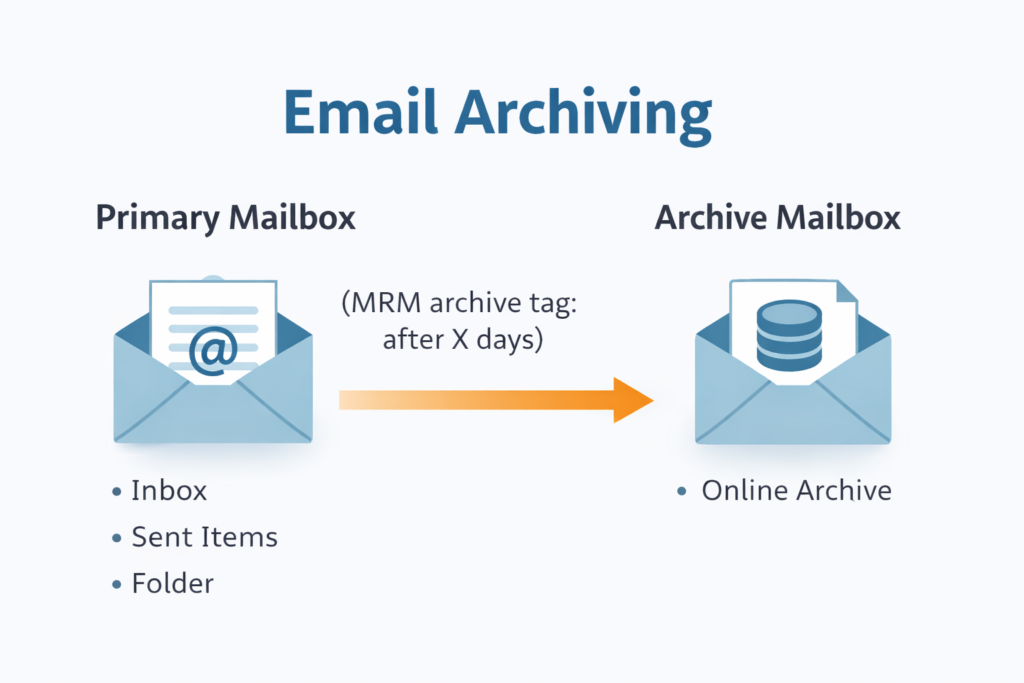
When archiving is enabled and an archive policy (MRM retention policy) runs, Exchange automatically moves older messages out of the user’s primary mailbox and places them into the user’s Archive mailbox.
So instead of a user’s Inbox growing forever, older content is shifted to a separate mailbox store.
✅ What happens when an archive policy runs?
✅ Rule format
An archive rule typically looks like this:
“Move items to Archive after X days”
Example:
- Move Inbox items older than 730 days (2 years) to the Archive mailbox.
Step-by-step: How it works in real life
1) User receives or sends emails normally
Emails arrive in:
- Inbox
- Sent Items
- Custom folders
Nothing changes for the user initially.
2) Exchange checks the age of items
Exchange evaluates items based on their retention age, which is usually calculated from:
- Date received (for incoming email)
- Date created/sent (for some item types)
- Last modified date (in some cases, depending on item behavior)
3) Once items cross the configured age, they are moved
If the rule says:
✅ “Move items older than 2 years to Archive”
Then the system shifts those emails from the primary mailbox into the Archive mailbox.
So:
Primary mailbox gets lighter
✅ Outlook feels faster
✅ Searching becomes cleaner
✅ Users stop hitting mailbox size limits quickly
What does the user see?
From the user’s perspective:
- Email is not deleted
- Email is still accessible
- But it appears under a new mailbox section called:
📌 In-Place Archive (Online Archive)
So the user can still open and read older emails, but they’re stored in the archive.
This is why archiving is considered “safe” from a user productivity point of view:
✅ mail is not lost, only moved.
Important: Archive mailbox is NOT the same as a folder
Many people think archive means:
“Emails go to an Archive folder inside Inbox.”
No.
An Exchange Online archive is basically:
✅ a separate mailbox store attached to the same user.
So you’ll see something like:
- User Mailbox (Primary)
- Online Archive – User (Archive)
✅ Example 1: Inbox → Move items older than 2 years to Archive
What it means
Any email sitting in Inbox that is older than 2 years will move automatically to the Archive mailbox.
Why this is useful
Inbox is usually the biggest folder and grows forever.
This policy:
✅ keeps Inbox clean
✅ improves performance
✅ avoids mailbox quota complaints
✅ allows user to still access old conversations
✅ Example 2: Deleted Items → Delete after 30 days
This is a different type of retention action.
What it means
Items sitting in Deleted Items longer than 30 days are cleaned up automatically.
It is usually applied because:
- Deleted Items becomes huge
- Users “store junk” there
- It wastes space
So after 30 days, Exchange attempts to remove those items.
⚠️ Important note about “Delete after 30 days”
Deleting via MRM policy means Exchange will remove items from normal mailbox folders.
But whether it is recoverable depends on:
✅ Deleted Items retention settings
✅ Litigation Hold / eDiscovery hold
✅ Purview retention policy
So:
- Archiving moves items
- Deletion policies remove items
- Retention/Hold policies preserve evidence
These are separate concepts.
Archiving is mainly used for mailbox size management
Admins enable archiving when:
- users have huge mailboxes (20GB, 40GB, 80GB+)
- Outlook performance becomes slow
- search results become messy
- organization wants inbox discipline without deleting mail
Does archiving affect compliance retention?
Not directly.
Archiving is not designed to meet compliance requirements.
It is designed to:
- manage storage
- manage mailbox experience
For compliance retention, you still use:
- Purview retention
- Litigation/eDiscovery holds when needed
✅ Quick summary (super simple)
When an archive policy runs:
- Old emails are MOVED to the Archive mailbox
- Users can still access them
- Primary mailbox stays small and fast
Example:
- Inbox > 2 years → Archive
- Deleted Items > 30 days → Delete
Archiving is NOT legal preservation
Archiving in Exchange Online is often misunderstood as a “safe storage” or “compliance solution,” but it’s not built for that purpose.
Archiving changes location, not protection
When archiving is enabled, Exchange simply moves older items from the primary mailbox to the Archive mailbox to reduce mailbox size and improve performance.
It does not change the security or compliance behavior of the messages.
That means:
- Users can still delete emails from the Archive mailbox
- Emails can still be modified, moved, or cleaned up
- Unless something else is configured, deleted items can still be removed permanently
So archiving is “storage management,” not “evidence preservation.”
A real-world example (why archiving fails for investigations)
Scenario:
A finance user is under investigation. Their mail is already archived (older than 2 years).
Now if the user deletes emails from the Archive mailbox:
✅ the emails disappear for the user
❌ archiving does not prevent deletion
❌ archiving does not guarantee recovery as legal evidence
To legally preserve that data, you still need:
Purview retention (policy-based compliance)
or
Litigation Hold / eDiscovery hold (investigation preservation)
The key point
Archiving helps you manage mailbox size and user experience.
Retention and holds are what protect you during audits, legal cases, and investigations.
MRM Archiving vs Purview Retention (Difference)
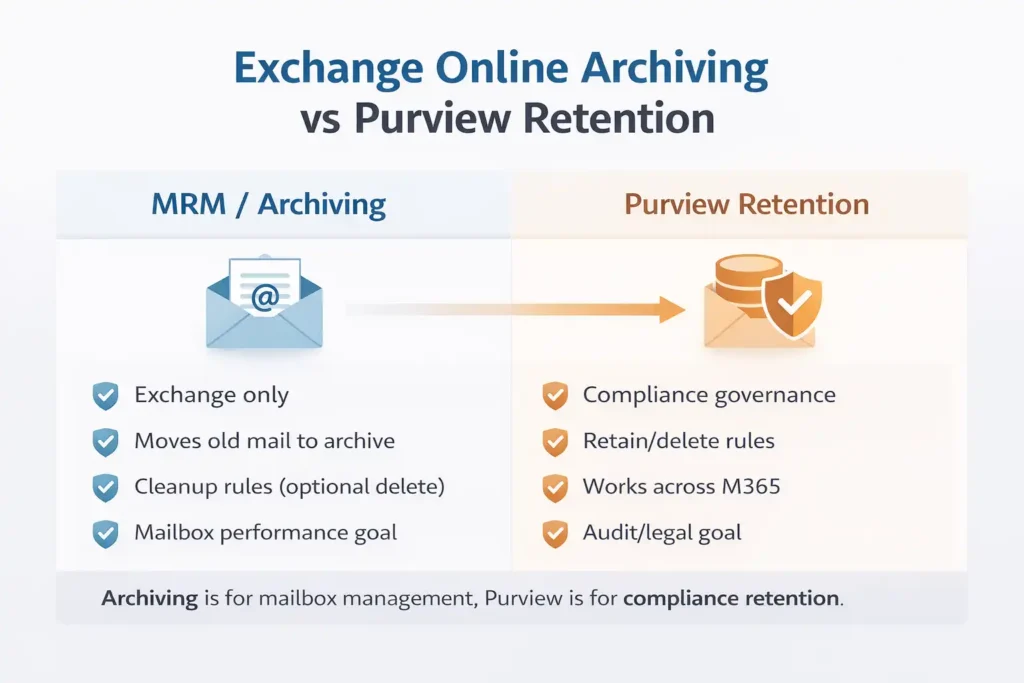
MRM / Archiving (Exchange retention tags + archive mailbox)
MRM is an Exchange-only mailbox management feature used to control mailbox size and structure.
It is mainly used to:
- move older emails from the primary mailbox to the Archive mailbox
- clean up folders (example: delete Deleted Items after 30 days)
- improve Outlook performance and user experience
📌 Goal: Keep mailboxes organized and prevent storage complaints.
Purview Retention (Microsoft 365 Compliance)
Purview retention is a compliance-first governance solution that defines how long data must be retained (or deleted) across Microsoft 365.
It is designed to:
- enforce tenant-wide retention rules (example: keep mail for 7 years)
- support compliance and audit requirements
- work across workloads like Exchange, SharePoint, OneDrive, and Teams (depending on scope)
📌 Goal: Meet legal/regulatory retention requirements and ensure consistent compliance.
Final takeaway (one line)
- MRM Archiving = mailbox performance + cleanup
- Purview Retention = compliance retention + governance
When should you use Exchange Online archiving?
Exchange Online archiving is useful when your goal is to keep the primary mailbox smaller, faster, and easier to manage, while still allowing users to access older emails.
1) Large mailboxes causing storage pressure
If users regularly hit mailbox limits or receive “mailbox full” warnings, archiving helps by moving older mail out of the primary mailbox into the archive.
2) Outlook performance issues
Very large primary mailboxes can slow down Outlook search, indexing, and sync performance. Archiving improves the day-to-day experience by reducing the amount of mail stored in the primary mailbox.
3) Users keep years of email in Inbox
Some users never delete or organize mail and store everything in Inbox forever. Archiving allows them to keep old messages without letting the main mailbox grow endlessly.
4) Need automatic cleanup and lifecycle management
Archiving works well with folder cleanup rules like removing old Deleted Items or Junk Email, so IT doesn’t have to rely on manual mailbox cleanup.
5) Reduce primary mailbox size without deleting business mail
This is the most common reason to enable archiving: old email remains accessible, but it no longer sits in the primary mailbox.
Recommended Best Practice Setup (Practical)
A clean and practical setup usually includes three layers: enable the archive mailbox, automate movement using MRM, and enforce compliance retention using Purview.
Step 1: Enable the Archive Mailbox
Enable the archive mailbox for users who need long-term email storage (typically heavy email users or departments that retain mail for years). This creates a separate Online Archive mailbox so older emails can be stored without bloating the primary mailbox.
Step 2: Apply an MRM policy (Archiving rule)
Apply an Exchange MRM retention policy that automatically moves older email from the primary mailbox into the archive.
Example rule:
- Move mail older than 1 year to the Archive mailbox
This improves mailbox performance and reduces “mailbox full” issues without deleting business-critical emails.
Step 3: Use Microsoft Purview retention for compliance
Archiving helps with mailbox size and organization, but it is not designed for compliance. Use Purview retention policies to enforce how long data must be retained (for example, 7 years) across the organization.
Archiving keeps mailboxes tidy; Purview retention ensures your organization stays compliant.
Common misconceptions
“If I enable archive, I’m compliant.”
Not necessarily.
An archive mailbox mainly helps with storage organization and mailbox size management. It moves older mail out of the primary mailbox, but it does not automatically enforce compliance retention requirements on its own.
“MRM policies are not the same as compliance retention.”
Not always.
MRM policies are designed for mailbox lifecycle actions (move to archive, delete after X days, cleanup folders). In many cases, MRM can remove content over time. If your goal is legal or regulatory retention, compliance retention should be managed using Microsoft Purview retention, not only MRM.
Final Summary
Best practice: Use archiving to manage mailbox size and user experience, and use Purview retention to meet compliance and legal retention requirements.
Archive Mailbox is a secondary mailbox used to store older emails without overloading the primary mailbox.
MRM Policy controls mailbox lifecycle actions like moving items to the archive or cleaning up old content automatically.
Microsoft Purview retention provides compliance-based retention across Microsoft 365 workloads such as Exchange, SharePoint, OneDrive, and more.
FAQ: Exchange Online Archiving (MRM) vs Archive Mailbox vs Purview Retention
1) What is the difference between Archive Mailbox and MRM policy?
An Archive Mailbox is the storage location (a secondary mailbox) where older emails can be moved.
An MRM policy is the set of rules (retention tags) that decides what happens to items—such as moving old emails to the archive or deleting content after a certain time.
In short: Archive Mailbox is the destination, MRM is the automation.
2) What does Exchange Online Archiving actually do?
Archiving moves older emails from the primary mailbox to the Online Archive mailbox based on configured rules. The email is still available to the user, but it is stored separately so the main mailbox stays smaller and performs better.
3) Is archiving the same as deleting?
No. Archiving typically moves email, it does not delete it.
However, MRM policies can also include cleanup actions, such as deleting items from Deleted Items after 30 days. So the action depends on the retention tag you apply.
4) Will users lose access to their archived emails?
No. Archived emails remain available and searchable, but they appear under a separate mailbox section called Online Archive (In-Place Archive) in Outlook.
Users can still open, reply to, or forward archived emails.
5) Does archiving improve Outlook performance?
Yes, it can.
When the primary mailbox becomes too large, Outlook search, indexing, and syncing can slow down—especially in cached mode. Moving older items to the archive reduces mailbox load and often improves responsiveness.
6) Does enabling Archive Mailbox make the organization compliant?
Not by itself.
Archiving is mainly for mailbox storage management, not legal compliance. For compliance retention requirements (like “keep email for 7 years”), you should use Microsoft Purview retention policies.
7) Can I use MRM policies for compliance retention?
MRM helps with mailbox organization, but it is not a complete compliance solution.
MRM policies can move and delete items based on time, which may conflict with legal retention needs if not designed carefully.
For compliance and legal retention, use Purview retention.
8) What is the difference between “Move to Archive” and “Retain for 7 years”?
Move to Archive (MRM archiving) is about mailbox management: old mail moves to the Online Archive.
Retain for 7 years (Purview retention) is about compliance: content must remain available for 7 years regardless of user actions.
You can use both together: archive for mailbox health, retention for compliance.
9) Do archived emails still show up in search?
Yes. Outlook and eDiscovery can search archived mail.
In Outlook, users may need to ensure they are searching “All Mailboxes” or include the archive mailbox in the search scope depending on client behavior.
10) How long does it take for archiving policies to start moving emails?
It’s not instant. MRM processing runs in the background and can take time depending on mailbox size and service processing. In real-world tenants, it may take hours to a few days for results to become noticeable.
11) Should I enable archive mailbox for all users?
Not always.
Enabling it for all users is fine in many organizations, but the best practice depends on:
– mailbox size growth patterns
– licensing/feature availability
– whether users actually need long-term storage
A common approach is to enable it for high-volume users and departments with long email history requirements.
12) What is a typical archiving configuration used by enterprises?
A very common setup is:
Enable Online Archive
Apply archiving tag like: Move items older than 1 year (or 2 years) to archive
Apply cleanup tags like: Delete Deleted Items after 30 days
Use Purview retention separately for compliance (example: retain emails for 7 years)
This keeps mailboxes clean without risking compliance.
13) Is archive mailbox a backup?
No.
Archive mailbox is part of Exchange Online storage. It is not a true backup solution. If you need backup and point-in-time restore beyond Microsoft 365 retention capabilities, you need a dedicated backup solution.
14) Can I disable archiving later?
Yes. You can disable the archive mailbox, but you should plan carefully because:
users may rely on archived mail for work
historical emails may need to remain accessible
compliance retention requirements still apply
Always validate retention and legal requirements before disabling archive.
15) What is the best practice overall?
Use each feature for the job it was designed for:
Archive Mailbox + MRM for mailbox size management and performance
Purview retention for compliance retention and governance
Litigation/eDiscovery holds when you need mailbox preservation during investigations