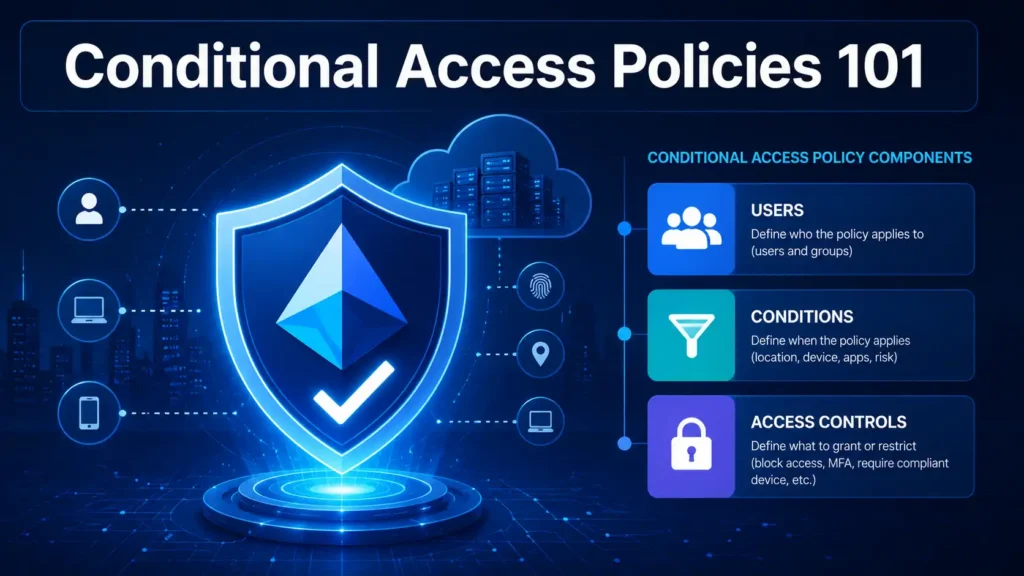
Conditional Access Policies 101: A Beginner’s Guide to Zero Trust
What Are Conditional Access Policies?
If you are new to Microsoft Entra ID security, the term “Conditional Access policies” might sound intimidating. You might be wondering: What exactly are they? How do they work? And why does every security expert keep telling you that you need them?
Let me break it down in the simplest way possible.
Conditional Access are the brain behind your identity security. They are automated rules that evaluate every authentication request to your tenant and decide whether to allow access, block access, or require additional verification steps. Think of them as intelligent gatekeepers that ask: “Who are you? Where are you coming from? What device are you using? What are you trying to access?” before letting anyone through.
In the traditional perimeter-based security model, the assumption was simple: if you are inside the corporate network, you are trusted. If you are outside, you are blocked. But in today’s hybrid work environment—where employees connect from coffee shops, home offices, and airports across the globe—that perimeter no longer exists. Conditional Access policies solve this problem by shifting the security decision from the network boundary to the identity itself.
Microsoft describes Conditional Access policies as the “Zero Trust policy engine” for Entra ID. Instead of trusting users based on their network location, you evaluate each sign-in attempt based on a dynamic set of conditions. This ensures that your organization remains secure regardless of where your users are working from.
To put it simply: Conditional Access policies are how you enforce Zero Trust security in your Microsoft 365 and Azure environment. They are the mechanism that turns the Zero Trust philosophy of “never trust, always verify” into actionable, automated security controls.
Explore more on Byqus Tutorials and Entra ID / Identity Section.
Why Conditional Access Policies Are the Foundation of Zero Trust Security
Zero Trust security is one of the most talked-about concepts in cybersecurity today. But for many IT administrators, it remains an abstract idea—something they know they should implement but don’t know where to start. Conditional Access are your starting point.
The Zero Trust model is built on three core principles:
- Verify explicitly: Always authenticate and authorize based on all available data points.
- Use least privilege access: Limit user access with just-in-time and just-enough-access.
- Assume breach: Minimize blast radius and segment access.
Conditional Access policies directly support all three of these principles. When you create a Conditional Access policy, you are explicitly verifying every sign-in attempt against a set of conditions. You are enforcing least privilege by only granting access when specific requirements are met. And you are assuming breach by continuously evaluating access requests rather than granting permanent trust.
Without Conditional Access policies, you are essentially running your identity security on “trust by default.” Every successful username and password combination—regardless of where it comes from, what device it uses, or how suspicious the behavior appears—grants access to your resources. This is the opposite of Zero Trust security.
Here is a simple analogy to understand this better. Imagine your Entra ID tenant is a secure office building. In the old model, anyone who walks through the front door during business hours is allowed in. They just need to show a badge (username and password). In the Zero Trust model, every person must show their badge, verify their identity with a second factor, be scanned for security clearance, and only be allowed into specific rooms that their badge permits. They are re-verified every time they move to a different floor. Conditional Access are the security system that makes this continuous verification possible.
Microsoft’s own data confirms the effectiveness of this approach. Organizations that implement Conditional Access policies reduce their risk of identity-based breaches by over 60%. When combined with multi-factor authentication, the risk reduction exceeds 99.9%—which is why every major security framework, including NIST and CISA, recommends this as a foundational control.
The Core Components of a Conditional Access Policy
To effectively configure Conditional Access policies, you need to understand their anatomy. Every Conditional Access policy is composed of three main elements:
- Assignments (Who and What)
- Conditions (Where and How)
- Access Controls (Action)
Let me explain each component in detail so you can start building Conditional Access policies with confidence.
1. Assignments: Users and Cloud Apps
Assignments define who the Conditional Access policy applies to and what they are trying to access.
Users – You can apply the policy to: – All users (everyone in your tenant) – Specific users or groups (e.g., only marketing team, only executives) – Guest users (B2B collaboration) – Directory roles (e.g., Global Administrators) – Service principals (for workload identities)
Exclusions are equally important. You should always exclude emergency break-glass accounts from Conditional Access policies to prevent accidental lockouts. This is a critical safety net.
Cloud apps / Actions – You can target: – All cloud apps (applies everywhere) – Specific apps (e.g., only Exchange Online, only SharePoint) – Specific user actions (e.g., registering security info, changing passwords)
2. Conditions: Sign-in Context
Conditions define where and how the user is signing in. This is where you add context-based intelligence to your Conditional Access policies.
Sign-in risk – Utilizes Microsoft’s Identity Protection to detect suspicious activity: – Low risk: Unusual sign-in characteristics – Medium risk: Leaked credentials or sign-in from a malicious IP – High risk: Confirmed compromised account
User risk – Indicates whether the user account itself has been compromised based on behavioral analytics.
Device platforms – Target specific operating systems like Windows, iOS, Android, or macOS.
Locations – Use named locations to block or require MFA based on IP ranges or trusted networks.
Client apps – Differentiate between: – Browser (web applications) – Mobile apps and desktop clients (Outlook, Teams, etc.) – Exchange ActiveSync – Other clients (IMAP, POP3, SMTP)
Device state – Check if the device is compliant with Intune policies or hybrid joined to your on-premises Active Directory.
3. Access Controls: The Action
Access controls define what happens when all conditions are met. Your Conditional Access policy can either:
Grant – Allow access with specific requirements: – Require multi-factor authentication – Require device to be marked as compliant – Require hybrid Azure AD joined device – Require approved client app – Require app protection policy
Block – Deny access entirely.
Session controls – Limit the user experience after they are granted access: – Use app enforced restrictions – Conditional Access app control
Understanding these components is essential because every effective Conditional Access policy is built by combining them strategically. For example, you might configure a Conditional Access policy that says: “If a user is signing in from an untrusted location and trying to access Exchange Online, require MFA.” This is how you implement Zero Trust security in practice.
Step-by-Step Guide to Creating Your First Conditional Access Policy
Now that you understand what Conditional Access policies are and how they work, let me walk you through creating your first policy. We will start with a simple yet powerful scenario that every organization should implement: requiring MFA for high-risk sign-ins.
Step 1: Access the Conditional Access Blade
- Sign in to the Microsoft Entra admin center with your administrator credentials.
- In the left navigation pane, expand Protection and select Conditional Access.
- Click on Policies to view all existing Conditional Access policies (you may not have any yet).
Step 2: Create a New Conditional Access Policy
Click + New policy and give it a clear, descriptive name. I recommend: Require MFA for High-Risk Sign-Ins. This makes it easy for your team to understand the purpose of this Conditional Access policy.
Step 3: Configure Assignments
Under Assignments, configure Users and groups:
- Include: Select All users.
- Exclude: Select your Emergency Break-Glass accounts. This is non-negotiable for any Conditional Access policy.
Under Target resources:
- Cloud apps: Select All cloud apps.
Step 4: Configure Conditions
This is where you define what triggers this Conditional Access policy:
- Sign-in risk: Set to Yes and select High.
- User risk: Set to Yes and select High.
- Device platforms: Leave as Not configured (applies to all).
- Locations: Leave as Not configured (applies to all).
By setting this up, the Conditional Access policy triggers only when there is a high-risk sign-in or a high-risk user account—exactly when you need MFA the most.
Step 5: Configure Access Controls
Under Grant:
- Select Grant access.
- Check Require multi-factor authentication.
- Select Require all the selected controls (this means they must satisfy ALL requirements—in this case, just MFA).
Step 6: Session Controls (Optional)
For this policy, you can skip session controls, but you could also set Sign-in frequency to require re-authentication every 24 hours.
Step 7: Enable Policy Mode
Set Enable policy to Report-only for now. You will validate this Conditional Access policy before enforcing it.
Click Create to save your first Conditional Access policy.
Congratulations! You have just created your first Conditional Access policy. This simple policy ensures that whenever Microsoft’s Identity Protection detects a high-risk sign-in, the user will be challenged for MFA—significantly reducing the risk of a compromised account being exploited.
Testing Conditional Access Policies with Report-Only Mode
One of the most valuable features of Conditional Access policies is Report-Only mode. Before you enforce any Conditional Access policy, you should test it in report-only mode to understand its impact without disrupting your users.
What Is Report-Only Mode?
When a Conditional Access policy is in Report-Only mode, Entra ID evaluates the policy for every sign-in request but does not enforce it. Instead, it logs what would have happened if the policy were active. You can then analyze these logs to understand:
- How many users would be affected by this Conditional Access policy?
- What kind of access would be granted or blocked?
- Are there any unexpected impacts on business-critical applications?
How to Analyze Report-Only Results
- Navigate to your Conditional Access policy.
- Click on the Report-only tab.
- You will see a dashboard showing:
- Users affected: Unique users who triggered the policy.
- Total sign-ins: Number of sign-ins evaluated.
- Action taken: Would the sign-in be allowed or blocked?
Pro Tip: Leave your Conditional Access policy in Report-Only mode for at least 7 days. This captures a full business cycle, including weekend activities and monthly processes that might trigger the policy.
Using the What-If Tool
The What-If tool is another invaluable resource for testing Conditional Access policies. It allows you to simulate sign-in conditions for specific users and see exactly how your Conditional Access policies would evaluate the request.
- Go to Conditional Access → What-If.
- Select a user to simulate.
- Define the conditions: location, device platform, client app, etc.
- Click What-If to see which Conditional Access policies apply and what action would be taken.
Testing your Conditional Access policies with these tools ensures that when you finally flip the switch to “On,” you do so with complete confidence. This is how you deploy Zero Trust security without disrupting your business.
Common Conditional Access Policy Scenarios for Zero Trust
Now that you understand the basics, let me share some of the most impactful Conditional Access policy scenarios that will dramatically improve your Entra ID security posture. These are proven templates that Microsoft recommends for every organization.
Scenario 1: Block Legacy Authentication
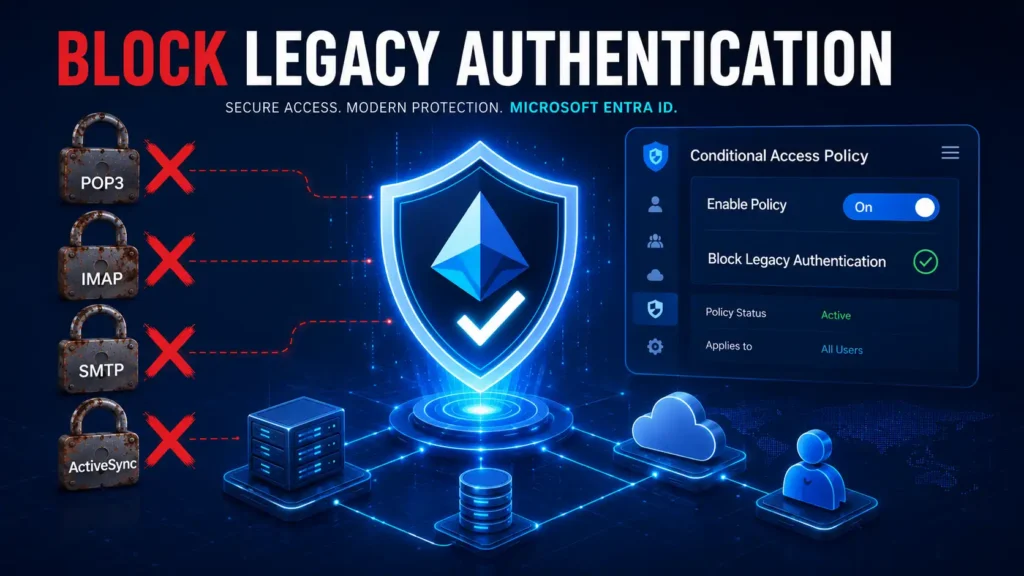
As we covered in detail in our previous guide, blocking legacy authentication is one of the most important Conditional Access policies you can create. This policy targets clients that use protocols like IMAP, POP3, and SMTP that do not support MFA.
- Assignments: All users (exclude break-glass accounts)
- Conditions: Client apps → Exchange ActiveSync and Other clients
- Access Controls: Block access
This Conditional Access policy alone eliminates over 97% of credential stuffing attack vectors.
Scenario 2: Require MFA for All Administrators
Administrative accounts are the crown jewels of your tenant. A compromised admin account gives attackers full control over your environment. This Conditional Access policy ensures that every administrator must use MFA for every sign-in.
- Assignments: Directory roles → All administrator roles
- Conditions: All conditions (no exceptions)
- Access Controls: Grant → Require multi-factor authentication
This Conditional Access policy is non-negotiable for Zero Trust compliance.
Scenario 3: Require Compliant Devices
This Conditional Access policy ensures that users can only access corporate resources from devices that meet your organization’s security standards—like having antivirus enabled, being up-to-date on patches, and having disk encryption enabled.
- Assignments: All users (exclude break-glass accounts)
- Conditions: All cloud apps
- Access Controls: Grant → Require device to be marked as compliant
This Conditional Access policy integrates with Microsoft Intune to enforce device compliance before granting access.
Scenario 4: Restrict Access Based on Location
This Conditional Access policy blocks sign-ins from countries where your organization has no business presence—effectively stopping attacks that originate from high-risk regions.
- Assignments: All users (exclude break-glass accounts)
- Conditions: Locations → Select “Any location” and exclude trusted countries
- Access Controls: Block access
This Conditional Access policy is particularly effective for organizations with strict data sovereignty requirements.
Scenario 5: Require App Protection Policy for Mobile Apps
This Conditional Access policy ensures that users accessing corporate data from mobile apps are using apps that enforce data protection—like preventing data from being saved to personal storage locations.
- Assignments: All users
- Conditions: Device platforms → iOS and Android
- Access Controls: Grant → Require app protection policy
These five Conditional Access policy scenarios form a comprehensive Zero Trust foundation for your Entra ID tenant. I recommend implementing them in priority order, starting with blocking legacy authentication.
Best Identity access management Practices for Managing Conditional Access Policies
As you begin building your Conditional Access policy portfolio, these best practices will help you maintain a secure, manageable, and business-friendly Zero Trust environment.
| Best Practice | Why It Matters |
|---|---|
| Always use Report-Only first | Testing Conditional Access policies in Report-Only mode prevents business disruption by revealing impacts before enforcement. |
| Create a naming convention | Use consistent naming like [Purpose] – [Action] – [Audience] (e.g., “Block Legacy Auth – All Users”). This makes it easy to manage multiple Conditional Access policies. |
| Maintain break-glass exclusions | Every Conditional Access policy should exclude at least one emergency access account. This is your safety net. |
| Use Conditional Access templates | Microsoft provides pre-built templates for common scenarios. These are great starting points for your Conditional Access policies. |
| Regularly review policies | Conditional Access policies are not “set and forget.” Review them quarterly to remove unused policies and adjust to new business requirements. |
| Implement policy staging | Roll out Conditional Access policies to pilot groups first before expanding to all users. |
| Monitor with sign-in logs | Use Entra ID sign-in logs to track how your Conditional Access policies are performing and identify any issues. |
Conditional Access and Licensing Requirements
One of the first questions IT administrators ask about Conditional Access policies is: “What licenses do I need?” Let me clarify this for you.
Entra ID Free vs. Premium
Entra ID Free does not include Conditional Access policies. You cannot create or manage Conditional Access policies with the free tier.
Entra ID Premium P1 provides basic Conditional Access policy functionality, including:
- Create and manage Conditional Access policies
- Location-based Conditional Access policies
- Device-based Conditional Access policies
- Application-based Conditional Access policies
Entra ID Premium P2 adds advanced features:
- Identity Protection (risk-based Conditional Access policies)
- Privileged Identity Management (PIM) integration
- Entitlement Management integration
- Access Reviews integration
Important note: You need a P1 or P2 license for every user that will be evaluated by Conditional Access policies. This means if you have 500 users, you need 500 P1 or P2 licenses. However, you do not need licenses for users who are exclusively excluded from all Conditional Access policies.
If you cannot afford premium licensing, Microsoft offers Security Defaults as a free alternative. Security Defaults provide baseline protection, including blocking legacy authentication. However, they lack the granularity and flexibility of custom Conditional Access policies.
Frequently Asked Questions (FAQs)
Q1: How many Conditional Access policies can I create?
- A: Microsoft has a limit of 200 Conditional Access per tenant. For most organizations, 10-20 well-designed policies are more than sufficient.
Q2: Do Conditional Access policies apply to guest users?
- A: Yes. Guest users (B2B) accessing your tenant are subject to your Conditional Access policies. You can also scope policies specifically to guest users if needed.
Q3: Can I use Conditional Access policies with legacy on-premises applications?
- A: Yes, through the Azure AD Application Proxy. This allows you to extend Conditional Access policies to your on-premises web applications.
Q4: What happens if a Conditional Access policy can’t be evaluated?
- A: If a sign-in request is missing required data (e.g., device state), the Conditional Access policy may behave differently based on your configuration. Always test with the What-If tool to understand these edge cases.
Q5: Do Conditional Access policies work with Microsoft 365 Apps?
- A: Yes. All modern Microsoft 365 Apps (Outlook, Teams, SharePoint, etc.) support Conditional Access policies. Older versions that do not support modern authentication may be blocked by Conditional Access policies.
Q6: Can I create Conditional Access policies based on user risk?
- A: Yes, but only with Entra ID Premium P2 licenses, which include Identity Protection.
Q7: How quickly do Conditional Access policies take effect?
- A: Conditional Access policies typically take effect within 5-10 minutes after creation or modification. However, token expiration and caching on clients may cause delays.
Conclusion: Start Building Your Zero Trust Foundation Today
Conditional Access policies are the most powerful tool in your Entra ID security toolkit. They transform your identity infrastructure from a static authentication system into a dynamic, intelligent Zero Trust enforcement layer.
In this beginner’s guide, we covered:
- What Conditional Access policies are and how they work
- Why Conditional Access policies are essential for Zero Trust security
- The core components of every Conditional Access policy: Assignments, Conditions, and Access Controls
- How to create your first Conditional Access policy step-by-step
- How to test Conditional Access policies with Report-Only mode and the What-If tool
- Five practical Conditional Access policy scenarios you can implement immediately
- Licensing requirements and best practices for managing Conditional Access policies
The journey to Zero Trust security starts with a single step. That step is implementing your first Conditional Access policy. You don’t need to roll out all five scenarios at once. Start small—perhaps with the “Require MFA for Administrators” policy—test it thoroughly, and gradually expand your Conditional Access policy portfolio.
Remember, every Conditional Access policy you create strengthens your organization’s security posture. Each policy is another layer of protection that attackers must bypass—and with Zero Trust, they will find no easy path.
Are you ready to build your Zero Trust foundation? Your next Conditional Access policy is just a few clicks away.
Explore more on Byqus Tutorials and Entra ID / Identity Section.