Automating Conditional Access Policy Management with Microsoft Security Copilot
What Is the Conditional Access Optimization Agent?
Imagine this scenario: Your organization has just rolled out a new Line-of-Business application. Your security team is confident that Conditional Access policies are protecting it—until a routine audit reveals that three new user accounts were added to the system last week, and none of them are covered by any existing policy. A gap that could have been exploited by an attacker for seven full days before anyone noticed.
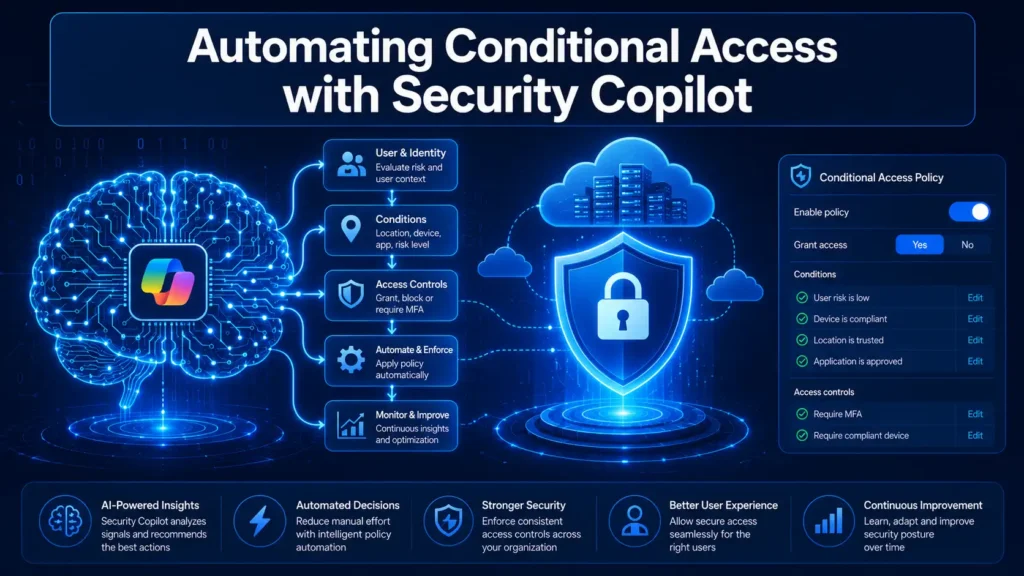
This is the kind of blind spot that the Conditional Access Optimization Agent—a Microsoft Security Copilot feature in Microsoft Entra—is designed to eliminate.[reference:0][reference:1] This AI-powered agent continuously scans your tenant for new users, applications, and agent identities, determines if your existing policies cover them, and recommends optimizations when gaps are found.[reference:2]
At its core, automating Conditional Access policy management with this agent means shifting from reactive, manual policy administration to proactive, AI-driven security enforcement. The agent evaluates policies against Microsoft best practices and Zero Trust principles, identifying gaps in MFA requirements, device compliance controls, and legacy authentication blocking.[reference:3]
When the agent identifies a suggestion—such as a user account that isn’t covered by MFA or a new application missing device compliance enforcement—you can review the recommendation and apply it with one click.[reference:4] This eliminates the weeks of manual analysis and planning that traditionally accompany policy reviews.[reference:5]
The agent runs every 24 hours automatically or can be triggered manually.[reference:6] It operates within your existing Microsoft Entra workflows, integrating seamlessly with your identity infrastructure.[reference:7] Most importantly, you remain in full control—the agent suggests, but you approve.[reference:8][reference:9]
Explore more on Byqus Tutorials and Entra ID / Identity Section.
Why Automating Conditional Access Policy Management Matters
Identity security teams are overwhelmed. Between managing access requests, investigating risky sign-ins, and responding to incidents, there is little time left for proactive policy optimization. This is precisely where automating Conditional Access policy management becomes a game-changer.
Traditional policy management is manual, time-consuming, and prone to errors. Administrators must:
- Regularly audit all existing policies for gaps and overlaps
- Manually identify new users, applications, and agent identities that need protection
- Analyze sign-in logs to understand policy impact
- Draft, test, and deploy new policies—a process that can take weeks
The Conditional Access Optimization Agent eliminates this manual burden. Automating Conditional Access policy management with this agent means the agent handles resource-intensive tasks like policy analysis and gap identification, freeing your team to focus on higher-value strategic work.[reference:10][reference:11]
Microsoft Entra agents like the Conditional Access Optimization Agent are AI-powered tools that operate autonomously, running on schedules or triggers to continuously monitor and optimize your identity infrastructure.[reference:12] They analyze your current environment within the boundaries of their capabilities, identify gaps, and take action on your behalf—all while providing clear context and reasoning for every suggestion.[reference:13]
The business impact is substantial. Organizations leveraging this capability reduce the risk window caused by policy drift, ensure comprehensive user protection, and achieve greater scalability in their security processes.[reference:14][reference:15] When new applications or user accounts are added to your environment, existing policies may not cover them effectively.[reference:16] The agent identifies these gaps and suggests optimizations within 24 hours—not weeks.
Key Capabilities of the Conditional Access Optimization Agent
Understanding the full scope of what this agent can do is essential to automating Conditional Access policy management effectively. Here are the core capabilities that make it a transformative tool for identity security teams.
Continuous Policy Scanning
The agent scans your tenant every 24 hours for new users, applications, and agent identities.[reference:17][reference:18] It evaluates whether your existing Conditional Access policies apply to these new entities. If the agent finds unprotected users or applications, it provides suggested next steps, such as creating or modifying a policy.[reference:19]
Best Practice Alignment
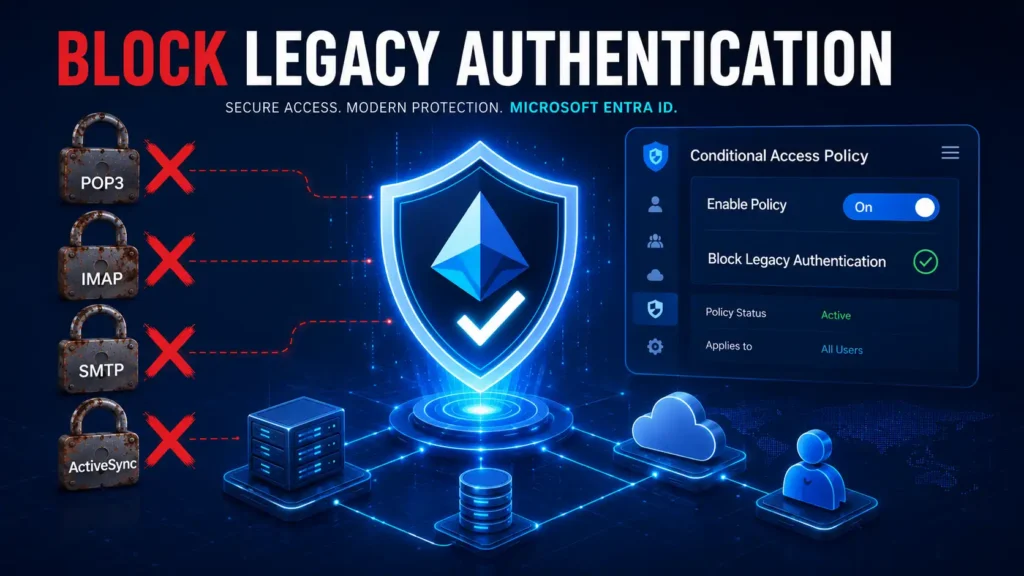
The agent recommends policies and changes based on best practices aligned with Zero Trust and Microsoft’s learnings.[reference:20][reference:21] It evaluates policies requiring multifactor authentication, enforcing device-based controls (device compliance, app protection policies, domain-joined devices), and blocking legacy authentication and device code flow.[reference:22][reference:23]
Policy Consolidation
The agent evaluates all existing enabled policies to propose potential consolidation of similar policies.[reference:24] This helps reduce policy sprawl, making your Conditional Access environment more manageable and easier to audit.
One-Click Remediation
When the agent identifies a suggestion, you can have the agent update the associated policy with one-click remediation.[reference:25] This dramatically reduces the time required to close security gaps—from days or weeks to seconds.
Phased Rollout
The agent includes a phased rollout capability that helps organizations deploy new policies safely and efficiently.[reference:26] This enables administrators to introduce policies gradually, monitor their impact, and minimize disruptions.[reference:27][reference:28]
Transparent Reasoning
The agent provides clear reasoning for its suggestions and rollout plans, maintaining transparency throughout the process.[reference:29] Administrators can review how the agent identified a solution and what would be included in the policy before taking any action.[reference:30]
Step-by-Step Guide to Automating Conditional Access with Security Copilot
Ready to start automating Conditional Access policy management? Follow these steps to set up and run the Conditional Access Optimization Agent in your tenant.
Step 1: Verify Prerequisites
Before you begin, ensure you have:
- A Microsoft Entra ID P1 license or higher[reference:31]
- Available Security Compute Units (SCU)—each agent run consumes less than one SCU on average[reference:32]
- Security Administrator or Global Administrator role to activate the agent for the first time during preview[reference:33]
- Device-based controls require Microsoft Intune licenses if you plan to enforce device compliance[reference:34]
Step 2: Activate the Agent
- Sign in to the Microsoft Entra admin center as at least a Security Administrator or Global Administrator.
- Browse to Entra ID → Conditional Access → Optimization.
- Click Activate to enable the Conditional Access Optimization Agent.[reference:35]
Important: During the preview, avoid using an account that requires role activation with Privileged Identity Management (PIM). Using an account without standing permissions might cause authentication failures for the agent.[reference:36]
Step 3: Run the Agent
Once activated, the agent runs automatically every 24 hours.[reference:37] You can also trigger it manually:
- Navigate to Entra ID → Conditional Access → Optimization.
- Click Run now to initiate a manual scan.
- The agent will scan your tenant for new users, applications, and agent identities from the last 24 hours.[reference:38]
Step 4: Review Suggestions
After the agent completes its scan, review the suggestions it provides:
- Navigate to the Activity tab to see the agent’s recommendations.[reference:39]
- Each suggestion includes the agent’s reasoning, what would be included in the policy, and the potential impact.[reference:40]
- Common suggestions include: requiring MFA for unprotected users, enforcing device compliance for new applications, and blocking legacy authentication for uncovered services.[reference:41]
Step 5: Apply Recommendations
For each suggestion, you have two options:
- One-click apply: The agent updates the associated policy with the recommended changes.[reference:42]
- Manual review: Review the suggestion in detail and make the changes manually through the Conditional Access policy interface.
For policy suggestions, the agent creates new policies in report-only mode by default.[reference:43] This gives you an opportunity to test the impact before enforcement.
Phased Rollout: Safe Deployment of Automated Policies
One of the most powerful features supporting automating Conditional Access policy management is the phased rollout capability.[reference:44] This ensures that even as you automate policy creation and modification, you maintain control and minimize business disruption.
How Phased Rollout Works
Any report-only policy that applies to all users is eligible for a phased rollout.[reference:45] The agent can suggest a phased rollout plan for policies it creates, or administrators can apply phased rollout to any existing report-only policy targeting all users.[reference:46]
The agent analyzes sign-in data and existing policies to define a phased rollout plan.[reference:47] Because there are five distinct phases to a rollout plan, you must have at least five groups for the plan to apply.[reference:48]
To determine which groups to use, the agent looks at groups previously or currently used in Conditional Access policies.[reference:49] It examines how other policies affected these groups to gauge potential impact, considers the size of the groups, and assigns them to phases—starting with low-impact groups and ending with higher-impact groups.[reference:50]
The Three-Step Process
- Review and adjust: You can review the groups included in each phase and make changes before and during the phased rollout.[reference:51]
- Phase 1 deployment: When the first phase starts, a new policy is created and turned on for the groups included in the first phase.[reference:52] The original report-only policy remains in place for other users.[reference:53]
- Monitor and proceed: Monitor the impact on the initial groups before proceeding to subsequent phases.
This gradual deployment approach minimizes the chance of widespread disruption to end users and reduces the need for manual analysis and planning.[reference:54] Administrators retain full control of group selection, rollout pacing, and deployment decisions.[reference:55]
Prerequisites and Licensing for Security Copilot Automation
Before you begin automating Conditional Access policy management, ensure you understand the licensing and prerequisite requirements. This will save you from unexpected roadblocks during setup.
| Requirement | Details |
|---|---|
| Microsoft Entra ID License | At least P1 is required for Conditional Access and the Optimization Agent[reference:56] |
| Security Compute Units (SCU) | Available SCUs are required. Each agent run consumes less than one SCU on average[reference:57] |
| Initial Activation Role | Security Administrator or Global Administrator (during preview)[reference:58] |
| Conditional Access Administrator Access | Can be assigned Security Copilot access to use the agent[reference:59] |
| Intune Licenses | Required for device-based controls (device compliance, app protection)[reference:60] |
| Minimum Groups | At least five defined groups used in Conditional Access policies for phased rollout[reference:61] |
Important Notes:
- The agent currently runs as the user who enables it.[reference:62]
- In preview, you should only run the agent from the Microsoft Entra admin center.[reference:63]
- Scanning is limited to a 24-hour period.[reference:64]
- Once agents are started, they can’t be stopped or paused. It might take a few minutes to run.[reference:65]
Best Practices for Automating Conditional Access Policy Management
To maximize the benefits of automating Conditional Access policy management with Security Copilot, follow these best practices:
| Best Practice | Why It Matters |
|---|---|
| Start with report-only mode | New policies created by the agent default to report-only mode[reference:66]. Review impact before enforcement. |
| Use phased rollout for new policies | Deploy policies gradually to minimize disruption and identify issues early[reference:67]. |
| Review agent suggestions regularly | The agent runs every 24 hours[reference:68]. Regular reviews ensure timely gap closure. |
| Maintain at least five Conditional Access groups | Required for phased rollout plans[reference:69][reference:70]. |
| Document policy decisions | The agent provides reasoning for suggestions[reference:71]—document your approvals for audit purposes. |
| Monitor agent activity | Review the agent’s activity feed to understand what changes are being recommended[reference:72]. |
| Combine with other Security Copilot agents | Integrate with phishing triage and threat intelligence agents for comprehensive automation[reference:73]. |
Troubleshooting the Conditional Access Optimization Agent
Even with careful planning, you may encounter issues when automating Conditional Access policy management. Here are the most common problems and how to resolve them.
Issue 1: Agent Fails to Activate
Symptom: You receive an error when trying to activate the Conditional Access Optimization Agent.
Resolution:
- Verify you are using an account with the Security Administrator or Global Administrator role. During preview, these roles are required for initial activation.[reference:74]
- Avoid using an account that requires Privileged Identity Management (PIM) role activation.[reference:75]
- Ensure you have available Security Compute Units (SCU).[reference:76]
Issue 2: Agent Doesn’t Generate Suggestions
Symptom: The agent runs but produces no recommendations.
Resolution:
- This may indicate that all users, applications, and agent identities are already covered by existing policies—which is good news!
- If you recently added new users or applications, ensure the agent has run after their addition. The agent scans for new entities from the last 24 hours.[reference:77]
- Verify that Conditional Access Administrator roles have been assigned Security Copilot access.[reference:78]
Issue 3: Phased Rollout Plan Not Generated
Symptom: The agent does not suggest a phased rollout plan for a policy.
Resolution:
- Ensure you have at least five defined groups that are currently used in Conditional Access policies.[reference:79]
- The policy must be in report-only mode and apply to all users to be eligible for phased rollout.[reference:80]
Issue 4: Policy Consolidation Not Working
Symptom: The agent is not suggesting consolidation of similar policies.
Resolution:
- Each agent run only looks at four similar policy pairs for consolidation.[reference:81]
- Run the agent multiple times to identify additional consolidation opportunities.
Frequently Asked Questions (FAQs)
Q1: What is the Conditional Access Optimization Agent?
- A: It is a Microsoft Security Copilot feature in Microsoft Entra that analyzes your Conditional Access policies and recommends improvements based on Zero Trust best practices.[reference:82]
Q2: How often does the agent scan my tenant?
- A: The agent runs automatically every 24 hours.[reference:83] You can also trigger it manually at any time.
Q3: What licenses do I need to use the Conditional Access Optimization Agent?
- A: You need Microsoft Entra ID P1 or higher and available Security Compute Units (SCU).[reference:84] Device-based controls also require Intune licenses.[reference:85]
Q4: Can the agent automatically create or modify policies?
- A: The agent suggests changes and can update policies with one-click remediation, but you retain full control and must approve the changes.[reference:86][reference:87]
Q5: What types of policies does the agent evaluate?
- A: The agent evaluates policies requiring MFA, enforcing device-based controls (compliance, app protection, domain-joined), and blocking legacy authentication.[reference:88][reference:89]
Q6: What is phased rollout and why is it important?
- A: Phased rollout allows you to deploy policies gradually to minimize disruption. The agent creates a plan with five phases, starting with low-impact groups.[reference:90][reference:91]
Q7: Does the agent work with third-party applications?
- A: The agent evaluates Conditional Access policies that apply to all cloud apps, including third-party applications integrated with Entra ID.
Q8: Can I run the agent from outside the Entra admin center?
- A: During preview, you should only run the agent from the Microsoft Entra admin center.[reference:92]
Conclusion: Embrace AI-Powered Identity Security
Automating Conditional Access policy management with Microsoft Security Copilot represents a paradigm shift in identity security. No longer must your team spend weeks manually auditing policies, identifying gaps, and drafting new configurations. The Conditional Access Optimization Agent handles these resource-intensive tasks, freeing your team to focus on strategic initiatives.[reference:93][reference:94]
In this comprehensive guide, we covered:
- What the Conditional Access Optimization Agent is and how it enables automating Conditional Access policy management
- Why automation matters for reducing risk, closing gaps faster, and freeing security teams
- Key capabilities including continuous scanning, best practice alignment, policy consolidation, one-click remediation, and transparent reasoning
- A complete step-by-step guide to activating and running the agent
- Phased rollout for safe, gradual policy deployment
- Prerequisites, best practices, and troubleshooting to ensure smooth implementation
The journey to AI-powered identity security starts with a single step—activating the Conditional Access Optimization Agent. The agent runs silently in the background, continuously monitoring your tenant, identifying gaps, and suggesting optimizations. When you’re ready to act, a single click applies the recommendation.
Remember: automating Conditional Access policy management doesn’t mean losing control. You remain in the driver’s seat, reviewing and approving every suggestion before it becomes policy. The agent simply does the heavy lifting—analyzing, identifying, and recommending—so you can focus on what matters most: protecting your organization.
Explore more on Byqus Tutorials and Entra ID / Identity Section.