Implementing Device Compliance with Conditional Access and Intune
What Is Device Compliance with Conditional Access?
Imagine this scenario: A user’s credentials are compromised through a phishing attack. The attacker now has a valid username and password. They attempt to sign in from an unmanaged, personal device that lacks antivirus protection, has an outdated operating system, and is riddled with vulnerabilities. In a traditional security model, the attacker would succeed—credentials alone are enough to gain access.
This is exactly the kind of scenario that device compliance with Conditional Access is designed to prevent. It adds a critical layer of security by ensuring that only devices meeting your organization’s security standards can access corporate resources.
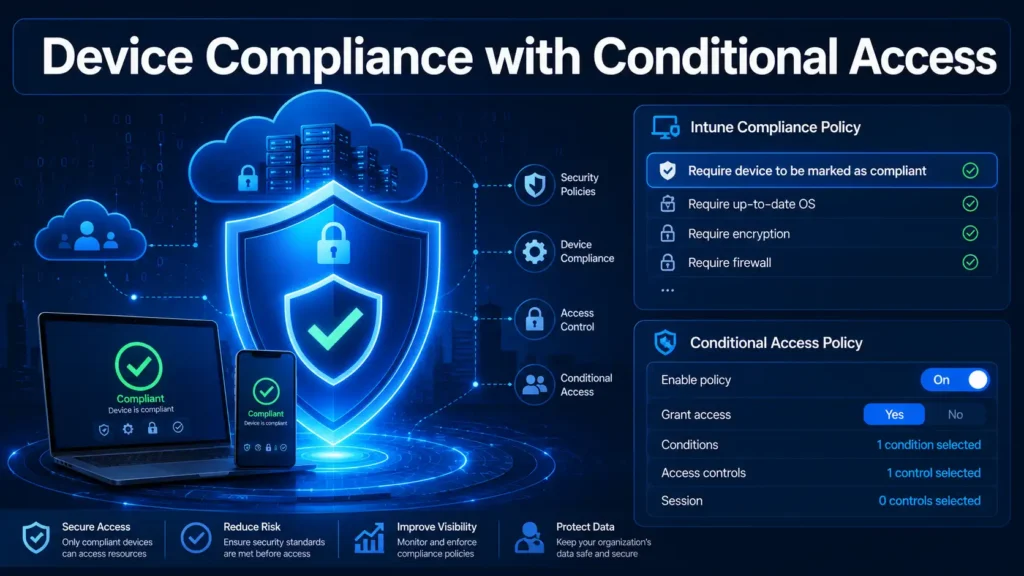
At its core, this security control works by integrating two Microsoft technologies: Microsoft Intune and Microsoft Entra Conditional Access. Intune manages and evaluates the compliance status of devices, while Conditional Access uses that status as a condition to grant or block access to cloud apps.
Here is how the workflow operates:
- Device enrollment: Users enroll their devices (Windows, macOS, iOS, Android) into Intune management.
- Compliance evaluation: Intune continuously evaluates the device against your organization’s compliance policies—checking for requirements like encryption, password complexity, operating system version, and jailbreak/root detection.
- Status reporting: The compliance status (compliant or non-compliant) is sent to Microsoft Entra ID.
- Access decision: When a user attempts to access a resource, Conditional Access evaluates the device compliance status and either grants or blocks access.
This approach ensures that even if credentials are compromised, attackers cannot access your data from unmanaged or non-compliant devices. This is a fundamental pillar of any Zero Trust security strategy.
Explore more on Byqus Tutorials and Entra ID / Identity Section.
Why Device Compliance Is a Zero Trust Security Essential
Zero Trust security is built on three core principles: verify explicitly, use least privilege access, and assume breach. Device compliance with Conditional Access directly supports all three.
In the traditional perimeter-based security model, users inside the corporate network were automatically trusted. This created a massive blind spot. An attacker who compromised an internal device could move laterally with impunity. This security control eliminates that assumption of trust by continuously verifying the security posture of every device attempting to access your resources.
Here are the key reasons why implementing this capability is essential for any Zero Trust strategy:
- Credential theft mitigation: Even if credentials are compromised, attackers cannot access resources from unmanaged or non-compliant devices. This renders stolen credentials useless.
- Consistent security enforcement: This control ensures that every device accessing your data meets your organization’s minimum security requirements—regardless of whether the user is in the office, at home, or on the road.
- Regulatory compliance: Many industry regulations (HIPAA, GDPR, NIST) require organizations to enforce device-level security controls. This helps you meet those requirements.
- Risk reduction: By blocking non-compliant devices, you significantly reduce the attack surface. Devices without the latest security patches, antivirus, or encryption become entry points for attackers.
Microsoft’s own Zero Trust framework recommends device compliance with Conditional Access as a foundational policy for every organization. When combined with multi-factor authentication (MFA), it provides defense-in-depth that protects against the most common attack vectors.
Understanding Intune Compliance Policies
Before you can implement device compliance with Conditional Access, you need to understand the foundation: Intune compliance policies. These policies define the security requirements that devices must meet to be considered compliant.
Intune compliance policies are platform-specific. You create separate policies for Windows, macOS, iOS/iPadOS, and Android devices. Each policy can include a variety of compliance rules:
Platform-Specific Compliance Rules
- Windows devices: Require BitLocker encryption, enable firewall, ensure antivirus is active (Microsoft Defender or third-party), require specific OS versions, and enforce password complexity.
- macOS devices: Require FileVault encryption, enforce password policies, require specific OS versions, and ensure firewall is enabled.
- iOS/iPadOS devices: Detect jailbroken devices, require passcode, enforce minimum OS version, and require managed apps.
- Android devices: Detect rooted devices, require encryption, enforce minimum OS version, and require device administrator or Android Enterprise enrollment.
How Compliance Status Is Determined
When a device is enrolled in Intune, it checks in regularly to evaluate its compliance status. The compliance policy evaluation determines whether the device meets all specified requirements.
The device receives a binary status:
- Compliant: The device meets all requirements.
- Non-compliant: The device fails one or more requirements.
This status is reported to both Intune and Microsoft Entra ID. Once the status is in Entra ID, Conditional Access policies can use it to make access decisions.
Critical note: Without a compliance policy created in Microsoft Intune, a Conditional Access policy that requires device compliance will not function as intended. You must create at least one compliance policy and ensure you have at least one compliant device before proceeding.
Step-by-Step Guide to Implementing Device Compliance with Conditional Access
Now that you understand the fundamentals, let me walk you through the complete process of implementing device compliance with Conditional Access. We will start with creating Intune compliance policies and then build the corresponding Conditional Access policy.
Step 1: Create an Intune Compliance Policy
Before creating any Conditional Access policy, you need to define the compliance standards your devices must meet.
- Sign in to the Microsoft Intune admin center as at least an Intune Administrator.
- Browse to Devices → Compliance policies → Policies.
- Click + Create policy and select the platform: Windows 10 and later, macOS, iOS/iPadOS, or Android.
- Define the compliance rules for your chosen platform:
- Device health: Require BitLocker, require secure boot, require code integrity.
- Device properties: Minimum and maximum OS versions.
- Configuration manager compliance: For co-managed devices.
- System security: Password requirements, encryption, firewall, antivirus.
- Under Actions for noncompliance, configure what happens when a device is non-compliant. I recommend setting a grace period (e.g., 7 days) to allow users time to remediate before access is blocked.
- Assign the compliance policy to the appropriate user groups.
Step 2: Create the Conditional Access Policy
With your compliance policies in place, you can now create the Conditional Access policy that enforces device compliance.
- Sign in to the Microsoft Entra admin center as at least a Conditional Access Administrator.
- Browse to Entra ID → Conditional Access → Policies.
- Click + New policy and give it a descriptive name, such as
Require Compliant Devices. - Under Assignments → Users or workload identities:
- Include: Select All users.
- Exclude: Select your emergency access or break-glass accounts. This is critical to prevent tenant lockout.
- If you use hybrid identity solutions, also exclude Directory Synchronization Accounts.
- Exclude service accounts and service principals that cannot enroll devices.
- Under Target resources → Resources (formerly cloud apps) → Include, select All resources (formerly “All cloud apps”).
- Under Conditions → Device platforms, select the platforms you want to enforce compliance on. You can target Windows, macOS, iOS, Android, and others.
- Under Access controls → Grant:
- Select Grant access.
- Check Require device to be marked as compliant.
- Select Require all the selected controls.
- Set Enable policy to Report-only to test first.
- Click Create to save your Conditional Access policy.
Step 3: (Optional) Require MFA as Well
For maximum security, you can combine device compliance with multi-factor authentication in a single Conditional Access policy. Under Grant, check both Require device to be marked as compliant and Require multi-factor authentication. This ensures that only users with valid credentials, MFA, and compliant devices can access your resources.
Testing Device Compliance Policies with Report-Only Mode
As with all Conditional Access policies, I strongly recommend testing your device compliance with Conditional Access policy in Report-Only mode before enforcement. This is especially important for compliance policies because they can have a significant impact on user productivity if misconfigured.
What Report-Only Mode Reveals
When your device compliance policy is in Report-Only mode, Entra ID evaluates every sign-in request against the policy but does not enforce it. Instead, it logs the results, giving you critical insights:
- Users affected: How many users would be blocked by this policy?
- Non-compliant devices: Which devices are non-compliant and why?
- Platform coverage: Are all device platforms properly evaluated?
Policies in report-only mode that require a compliant device can prompt users on macOS, iOS, and Android devices to select a device certificate during policy evaluation, even though device compliance isn’t enforced. These prompts can repeat until the device is compliant, giving you a preview of the user experience.
How to Analyze Report-Only Results
- Navigate to your device compliance policy in the Entra admin center.
- Click on the Report-only tab.
- Review the dashboard showing affected users and sign-in attempts.
- For any users who would be blocked, investigate why their devices are non-compliant.
Pro Tip: Leave your device compliance with Conditional Access policy in Report-Only mode for at least 7-14 days. This gives users time to enroll their devices and remediate compliance issues before enforcement.
Using the What-If Tool
The What-If tool is invaluable for testing device compliance policies:
- Go to Conditional Access → What-If.
- Select a user and specify a device state (compliant or non-compliant).
- The tool will simulate your policies and show you what action would be taken.
This allows you to test edge cases—like what happens when a device is non-compliant—without waiting for real sign-in events.
Common Device Compliance Scenarios for Conditional Access
Here are the most impactful device compliance with Conditional Access scenarios that I recommend every organization implement:
Scenario 1: Require Compliant Devices for All Access
This is the most comprehensive device compliance scenario. Every user, on every device, must be compliant to access any corporate resource.
- Policy: Require device to be marked as compliant
- Target: All users, all cloud apps
- Exclusions: Break-glass accounts, service accounts
This policy ensures that only managed, secure devices can access your data. It is the gold standard for Zero Trust security.
Scenario 2: Require Compliant Devices for Sensitive Apps Only
If your organization is not ready to require device compliance for all users, you can start by targeting sensitive applications only.
- Policy: Require device to be marked as compliant
- Target: All users, specific cloud apps (e.g., SharePoint Online, Dynamics 365)
- Exclusions: Break-glass accounts
This phased approach allows users to access less sensitive apps from personal devices while protecting critical data.
Scenario 3: Require Compliant Devices OR App Protection
For organizations with a significant Bring Your Own Device (BYOD) population, this scenario offers flexibility.
- Policy: Grant access if device is compliant OR app protection policy is applied
- Target: All users, all cloud apps
This allows users to access corporate data from personal devices as long as they use approved apps with data protection policies—without requiring full device enrollment.
Scenario 4: Integrate Defender for Endpoint Risk
For organizations with Microsoft Defender for Endpoint, you can add device risk as a condition.
- Policy: Require device to be marked as compliant AND require device risk below a certain level
- Target: All users, all cloud apps
To use the “Device risk” condition, you must configure a compliance policy in Intune that evaluates Defender for Endpoint risk levels.
Best Practices for Device Compliance with Conditional Access
To maximize the effectiveness of device compliance with Conditional Access while minimizing user disruption, follow these best practices:
| Best Practice | Why It Matters |
|---|---|
| Always test in Report-Only first | Device compliance policies can block users unexpectedly. Report-Only mode reveals impacts before enforcement. |
| Coordinate user groups | Ensure the same user groups are assigned to both compliance policies and Conditional Access policies. |
| Set a grace period | Allow users time to remediate non-compliant devices before access is blocked. Align the grace period with the sensitivity of the data being accessed. |
| Maintain break-glass exclusions | Every device compliance policy must exclude emergency access accounts to prevent tenant lockout. |
| Understand device check-in intervals | Compliance policies are evaluated when devices check in. Understand these intervals to set appropriate expectations. |
| Avoid policy conflicts | Ensure compliance policies don’t conflict with configuration profiles. |
| Communicate with users | Notify users about compliance requirements and provide clear instructions for enrolling devices and remediating issues. |
Troubleshooting Device Compliance with Conditional Access
Even with careful planning, you may encounter issues with device compliance with Conditional Access. Here are the most common problems and how to resolve them:
Issue 1: Policy Is Not Blocking Non-Compliant Devices
Symptom: Your device compliance policy appears to be configured correctly, but non-compliant devices are still able to access resources.
Resolution:
- Verify that the policy is in “On” mode, not “Report-only.”
- Verify that a compliance policy exists in Intune and is assigned to the correct user groups. Without a compliance policy, the Conditional Access policy will not function.
- Check that devices are actually enrolled in Intune. Devices that are not enrolled cannot be evaluated for compliance.
Issue 2: Devices Show as Non-Compliant Incorrectly
Symptom: A device that meets all requirements is still marked as non-compliant.
Resolution:
- Check the compliance policy in Intune to see which specific rule is failing.
- Ensure the device has checked in recently. Compliance status may not be updated immediately.
- Verify that the device meets the minimum OS version requirement.
Issue 3: Users Prompted for Certificate Repeatedly
Symptom: Users on macOS, iOS, or Android devices are repeatedly prompted to select a device certificate during sign-in.
Resolution:
- This often occurs when a policy requiring a compliant device is in Report-Only mode. The prompts may repeat until the device is compliant.
- Ensure devices are properly enrolled and have the required certificates.
Issue 4: Compliance Status Is Blank
Symptom: In sign-in logs, the device compliance status shows as blank rather than compliant or non-compliant.
Resolution:
- A blank status typically indicates that the device is not enrolled in Intune.
- Users must enroll their devices before compliance can be evaluated.
Frequently Asked Questions (FAQs)
Q1: What licenses do I need for device compliance with Conditional Access?
- A: You need Microsoft Entra ID Premium P1 or P2 for Conditional Access and Microsoft Intune Plan 1 (included in many Microsoft 365 E3/E5 and F1 licenses) for device compliance.
Q2: Can I use device compliance with Conditional Access for third-party MDM solutions?
- A: Yes. Microsoft Intune supports integration with several third-party device compliance partners, including Workspace ONE, Jamf Pro, and Scalefusion. The partner adds compliance state data to Microsoft Entra ID, which Conditional Access can then use.
Q3: What happens if a device is non-compliant?
- A: When a device is non-compliant, Conditional Access blocks access to the protected resources. The user may be prompted to remediate the issue (e.g., update OS, enable encryption) or enroll the device.
Q4: Does device compliance work with personal devices (BYOD)?
- A: Yes, but personal devices must be enrolled in Intune management. If users are unwilling to enroll, consider using app-based Conditional Access with Intune App Protection Policies instead.
Q5: Can I require device compliance for browser access?
- A: Yes, but the device must be enrolled in Intune and have a compliance state. If users can still access via browser, it may indicate that devices are not enrolled or the policy is not fully targeting browser access.
Q6: How often does Intune evaluate device compliance?
- A: Devices check in with Intune at regular intervals (typically every 8 hours for Windows, more frequently for mobile devices). Compliance status is updated during each check-in.
Q7: What is the difference between “Require device to be marked as compliant” and “Require hybrid Azure AD joined device”?
- A: “Require device to be marked as compliant” requires Intune enrollment and compliance evaluation. “Require hybrid Azure AD joined device” requires the device to be joined to both on-premises Active Directory and Entra ID. They are different controls for different scenarios.
Q8: Can I combine device compliance with other conditions?
- A: Yes. Device compliance with Conditional Access can be combined with user risk, sign-in risk, location, and other conditions for granular Zero Trust enforcement.
Conclusion: Secure Your Environment with Device Compliance
Device compliance with Conditional Access is one of the most powerful security controls available in the Microsoft ecosystem. It ensures that only managed, secure devices can access your corporate resources—closing a critical gap that attackers frequently exploit.
In this comprehensive guide, we covered:
- What device compliance with Conditional Access is and how it integrates Intune and Entra ID
- Why device compliance is essential for Zero Trust security
- How Intune compliance policies work and the platform-specific requirements they enforce
- A complete step-by-step guide to creating compliance policies and the corresponding Conditional Access policy
- How to test device compliance policies using Report-Only mode and the What-If tool
- Four common scenarios for device compliance with Conditional Access
- Best practices and troubleshooting to keep your policies running smoothly
The journey to Zero Trust security requires multiple layers of protection. Device compliance with Conditional Access is a critical layer that ensures only trusted devices can access your data. Start with a pilot group, test thoroughly in Report-Only mode, and gradually expand your policy to cover your entire organization.
Remember: device compliance with Conditional Access is most powerful when combined with other Zero Trust controls like MFA, user risk, and sign-in risk policies. Build your defense-in-depth strategy one policy at a time.
Explore more on Byqus Tutorials and Entra ID / Identity Section.