Entra ID Identity Protection: Risk-Based Conditional Access Policies
What Is Entra ID Identity Protection?
Imagine this scenario: An employee’s credentials are leaked in a third-party data breach. The attacker now has a valid username and password. They attempt to sign in from an unfamiliar location using a suspicious device. In a traditional security model, the attacker might succeed—credentials alone are often enough to gain access.
This is exactly the kind of scenario that Entra ID Identity Protection is designed to prevent. It is a Microsoft Entra ID Premium P2 feature that detects, investigates, and remediates identity-based risks in real time. It analyzes billions of signals from Microsoft’s threat intelligence, user behavior, and sign-in patterns to identify suspicious activity.
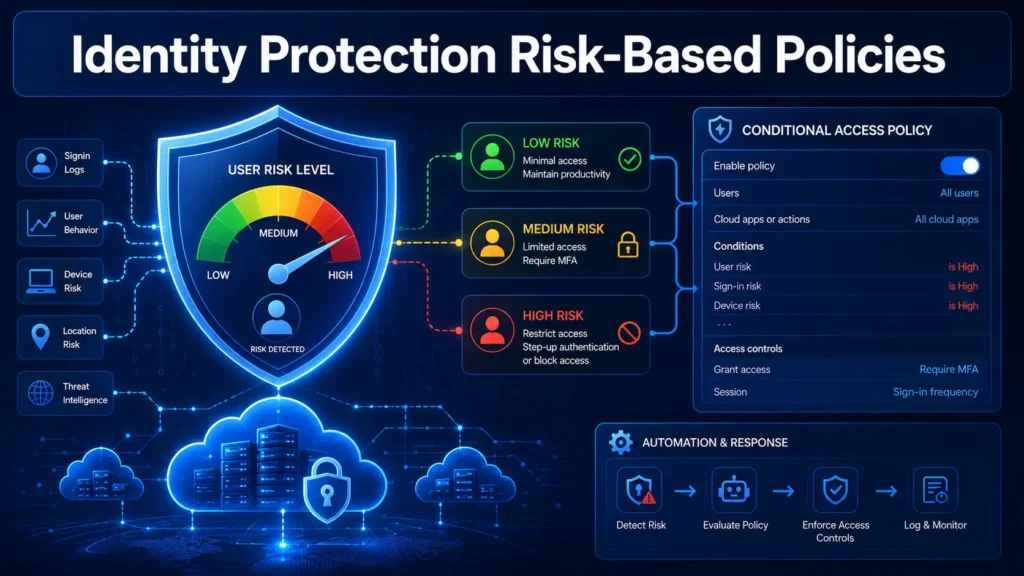
At its core, Entra ID Identity Protection works by assigning risk levels to users and sign-in attempts. These risk levels are calculated by machine learning algorithms and represent how confident Microsoft is that a user’s credentials are known by an unauthorized entity. ID Protection categorizes risk into three tiers: low, medium, and high.
Risk detections can be linked to a sign-in event (sign-in risk) or an individual user (user risk). Sign-in risk represents the probability that a given authentication request isn’t made by the identity owner. User risk shows the likelihood that an identity or account is compromised.
Entra ID Identity Protection sends these risk signals to Conditional Access, which then enforces organizational policies. These policies might require users to perform multifactor authentication (MFA), complete a secure password change, or block access entirely—all based on the detected risk level.
Explore more on Byqus Tutorials and Entra ID / Identity Section.
Why Risk-Based Conditional Access Policies Matter
Traditional Conditional Access policies rely on static conditions—location, device, application, or user group. While these are valuable, they don’t adapt to the dynamic nature of modern cyber threats. A user signing in from a trusted office location with a compliant device could still have compromised credentials. Risk-based Conditional Access policies solve this problem.
By incorporating risk signals from Entra ID Identity Protection, these policies dynamically evaluate the threat level of every sign-in attempt and enforce appropriate access controls. This is the essence of Zero Trust security: never trust, always verify.
Here are the key reasons why risk-based Conditional Access policies are essential:
- Automatic risk remediation: When a user successfully completes a required access control—like a secure password change—their risk is automatically remediated. The user account and sign-in session are no longer at risk, and no action is needed from the administrator.
- Reduced administrative burden: Allowing users to self-remediate significantly reduces the risk investigation and remediation burden on administrators while protecting your organization from security compromises.
- Real-time threat response: During each sign-in, ID Protection evaluates real-time detections and assigns a sign-in session risk level. This enables immediate enforcement of access controls when suspicious activity is detected.
- Scalable protection: Risk-based Conditional Access policies scale across large environments, enforcing protections consistently for thousands of users.
Risk-based Conditional Access policies represent a fundamental shift from reactive security to proactive, intelligent protection. Instead of waiting for an incident to occur, you can automatically prevent compromised accounts from being exploited.
Understanding User Risk and Sign-In Risk
Entra ID Identity Protection provides two distinct risk conditions that can be used in Conditional Access policies: user risk and sign-in risk. Understanding the difference between these two is critical for effective policy configuration.
User Risk
User risk shows the likelihood that an identity or account is compromised. ID Protection analyzes signals about user accounts and calculates a risk score based on the probability that the user is compromised.
User risk is elevated when:
- The user’s credentials have been leaked in a data breach
- The user exhibits risky sign-in behavior across multiple sessions
- Anomalous user activity is detected over time
User risk persists across sessions until it is remediated or dismissed. It represents a broader, more persistent threat to the account itself—not just a single sign-in attempt.
Sign-In Risk
Sign-in risk shows the probability that a specific authentication request isn’t made by the identity owner. It is evaluated in real time during each sign-in attempt.
Sign-in risk is elevated when:
- The sign-in originates from an unfamiliar location or device
- The sign-in uses an anonymous IP address
- The sign-in exhibits unusual characteristics compared to the user’s typical behavior
Unlike user risk, sign-in risk is specific to a single authentication request. Once the sign-in session ends, the risk evaluation is complete.
Why You Shouldn’t Combine Them
A critical best practice: Don’t combine sign-in risk and user risk conditions in the same Conditional Access policy. Create separate policies for each risk condition.
Combining them can create confusing policy behavior and make troubleshooting difficult. Separate policies allow for clearer remediation paths and more granular control over user experience.
Risk Detection Types and Levels
Entra ID Identity Protection provides organizations with information about suspicious activity in their tenant and allows you to respond quickly to prevent further risk. Risk detections are a powerful resource that can include any suspicious or anomalous activity related to user accounts and service principals in the directory.
Risk Levels
ID Protection categorizes risk into three tiers: low, medium, and high. Risk levels are calculated by machine learning algorithms and represent how confident Microsoft is that one or more of the user’s credentials are known by an unauthorized entity.
- High: Microsoft is highly confident that the account is compromised. Signals such as threat intelligence and known attack patterns factor into the confidence level.
- Medium: Indicates that one or more moderate-severity risk signals have been detected.
- Low: Minor risk signals have been detected. Low-level risk detections and users persist for six months, after which they’re automatically aged out.
Example Risk Detections
Some risk detections are always delivered as high risk because Microsoft has proof of the threat:
- Leaked Credentials: The user’s credentials have been found in a public data breach.
- Verified Threat Actor IP: The sign-in originated from an IP address associated with known threat actors.
Other detections can fire at multiple risk levels depending on the confidence level:
- Unfamiliar sign-in properties: May fire at high, medium, or low based on the level of familiarity with the sign-in properties.
Risk levels are important when deciding which detections to prioritize, investigate, and remediate. They also play a key role in configuring risk-based Conditional Access policies, as each policy can be set to trigger for low, medium, or high risk levels.
Step-by-Step Guide to Configuring Risk-Based Conditional Access Policies
Ready to implement risk-based Conditional Access policies? Follow these steps to set up user risk and sign-in risk policies in your tenant.
Step 1: Access the Conditional Access Blade
- Sign in to the Microsoft Entra admin center as at least a Conditional Access Administrator.
- Browse to Entra ID → Conditional Access.
Step 2: Create a User Risk Policy
- Click + New policy and give it a descriptive name, such as
User Risk - High - Require Remediation. - Under Assignments → Users or workload identities:
- Include: Select All users.
- Exclude: Select your emergency access or break-glass accounts. This is critical to prevent tenant lockout.
- Under Target resources → Resources (formerly cloud apps):
- Include: Select All resources (formerly “All cloud apps”).
- Under Conditions → User risk:
- Set Configure to Yes.
- Select High as the risk level. Microsoft recommends selecting “Require risk remediation” when user risk is High.
- Under Access controls → Grant:
- Select Grant access.
- Check Require risk remediation. This control uses adaptive risk remediation to accommodate all authentication methods, including password-based and passwordless.
- Select Require all the selected controls.
- Set Enable policy to Report-only to test first.
- Click Create to save the policy.
Step 3: Create a Sign-In Risk Policy
- Click + New policy and give it a descriptive name, such as
Sign-In Risk - Medium/High - Require MFA. - Under Assignments → Users or workload identities:
- Include: Select All users.
- Exclude: Select your emergency access or break-glass accounts.
- Under Target resources → Resources (formerly cloud apps):
- Include: Select All resources.
- Under Conditions → Sign-in risk:
- Set Configure to Yes.
- Select Medium and High as the risk levels. Microsoft recommends requiring MFA when sign-in risk is Medium or High.
- Under Access controls → Grant:
- Select Grant access.
- Check Require multifactor authentication.
- Select Require all the selected controls.
- Set Enable policy to Report-only to test first.
- Click Create to save the policy.
Step 4: Important Configuration Notes
When configuring risk-based Conditional Access policies, keep these critical points in mind:
- Users must register for MFA before they face a situation requiring remediation. Users not registered are blocked and require administrator intervention.
- For hybrid users synced from on-premises, password writeback must be enabled for secure password change to work.
- A password change outside of the risky user policy remediation flow doesn’t meet the requirement for secure password change.
- When “Require risk remediation” is selected, two settings are automatically applied: Require authentication strength and Sign-in frequency – Every time.
Microsoft Recommended Risk Policy Configurations
Microsoft provides the following recommendations for risk-based Conditional Access policies to protect your organization.
| Policy Type | Recommended Configuration |
|---|---|
| User Risk Policy | Select Require risk remediation when user risk level is High. For passwordless users, Microsoft Entra revokes the user’s sessions so they must reauthenticate. For users with passwords, they’re prompted to complete a secure password change after a successful MFA. |
| Sign-In Risk Policy | Select Require multifactor authentication when sign-in risk level is Medium or High. This configuration allows users to prove it’s them. |
These configurations balance security and user productivity while enabling automatic risk remediation.
Choosing Acceptable Risk Levels
Organizations must decide the level of risk they want to require access control on, while balancing security posture and user productivity.
- High risk only: Reduces the number of times a policy is triggered and minimizes friction for users. However, it excludes Low and Medium risks, which might not block an attacker from exploiting a compromised identity.
- Medium and High risk: Provides stronger protection but introduces more user interrupts.
Configured trusted network locations are used by Entra ID Identity Protection in some risk detections to reduce false positives.
Testing Risk Policies with Report-Only Mode and What-If Tool
As with all Conditional Access policies, I strongly recommend testing your risk-based Conditional Access policies in Report-Only mode before enforcement. This is especially important for risk policies because they dynamically respond to threat signals and can have unexpected impacts.
Using Report-Only Mode
When your risk-based Conditional Access policy is in Report-Only mode, Entra ID evaluates every sign-in request against the policy but does not enforce it. Instead, it logs the results, giving you critical insights:
- Users affected: How many users would be required to remediate or perform MFA?
- Risk patterns: What risk levels are most common in your environment?
- False positives: Are legitimate users being flagged as risky?
Using the What-If Tool
The What-If tool is invaluable for testing risk-based Conditional Access policies. Entra ID’s built-in What-If tool simulates how Conditional Access policies apply to a given user, location, device, or risk level.
- Go to Conditional Access → What-If.
- Select a test user, location, platform, sign-in risk level, and app.
- The tool will simulate your policies and show you what action would be taken.
Simulating Risk Detections
You can also simulate risk events for testing purposes: Under Entra ID → Identity Protection → Risk detections, you can trigger a sample sign-in risk or user-risk event for a test account to see it flow through the risk engine and hit your Conditional Access policy.
Pro Tip: Leave your risk-based Conditional Access policies in Report-Only mode for at least 7-14 days. This gives you time to understand risk patterns in your environment and adjust policies before enforcement.
Prerequisites and Licensing for Identity Protection
Before you begin implementing risk-based Conditional Access policies, ensure you understand the licensing and prerequisite requirements.
| Requirement | Details |
|---|---|
| Microsoft Entra ID License | Microsoft Entra ID P2 or Microsoft Entra Suite is required for full access to Microsoft Entra ID Protection features, including risk-based Conditional Access. |
| Administrative Role | The Conditional Access Administrator role is the least privileged role required to create or edit Conditional Access policies. |
| MFA Registration | Users must register for Microsoft Entra multifactor authentication before they face a situation requiring remediation. Users not registered are blocked and require administrator intervention. |
| Password Writeback (Hybrid) | For hybrid users synced from on-premises, password writeback must be enabled for secure password change to work. |
Important note: P1 licenses provide standard Conditional Access capabilities, but P2 is required for the Identity Protection risk signals that power risk-based Conditional Access policies.
Best Practices for Risk-Based Conditional Access Policies
To maximize the effectiveness of risk-based Conditional Access policies while minimizing user disruption, follow these best practices:
| Best Practice | Why It Matters |
|---|---|
| Create separate policies for user risk and sign-in risk | Don’t combine sign-in risk and user risk conditions in the same policy. Create separate policies for each risk condition. |
| Always start with Report-Only mode | Risk policies can block users unexpectedly. Report-Only mode reveals impacts before enforcement. |
| Review ID Protection reports first | It’s important to review the ID Protection reports before deploying risk-based Conditional Access policies. |
| Maintain break-glass exclusions | Every risk policy must exclude emergency access accounts to prevent tenant lockout. |
| Use trusted network locations | Trusted network locations are used by ID Protection in some risk detections to reduce false positives. |
| Enable self-remediation | Configure policies that allow users to self-remediate rather than simply blocking access. This reduces the administrative burden. |
| Monitor the Impact Analysis workbook | Use the Impact analysis of risk-based access policies workbook under ID Protection to understand your environment before enabling policies. |
Frequently Asked Questions (FAQs)
Q1: What license do I need for risk-based Conditional Access policies?
- A: You need Microsoft Entra ID Premium P2 or Microsoft Entra Suite. P2 adds ID Protection capabilities on top of standard Conditional Access in P1.
Q2: What is the difference between user risk and sign-in risk?
- A: User risk shows the likelihood that an identity or account is compromised and persists across sessions. Sign-in risk shows the probability that a specific authentication request isn’t made by the identity owner and is evaluated in real time.
Q3: Can I combine user risk and sign-in risk in one policy?
- A: No. Microsoft warns against combining them in the same Conditional Access policy. Create separate policies for each risk condition.
Q4: What happens when a user is flagged as high risk?
- A: Depending on your policy configuration, the user may be required to complete a secure password change, perform MFA, or be blocked entirely. With “Require risk remediation” selected, ID Protection manages the appropriate remediation flow.
Q5: Do risk policies work for passwordless users?
- A: Yes. The “Require risk remediation” control accommodates all authentication methods, including password-based and passwordless. For passwordless users, Microsoft Entra revokes the user’s sessions so they must reauthenticate.
Q6: What risk level should I configure for my policies?
- A: Microsoft recommends configuring user risk remediation at High and sign-in risk MFA at Medium or High. However, you should adjust based on your organization’s risk tolerance.
Q7: How are risk levels calculated?
- A: Risk levels are calculated by machine learning algorithms and represent how confident Microsoft is that one or more of the user’s credentials are known by an unauthorized entity.
Q8: What happens to legacy risk policies in ID Protection?
- A: Legacy risk policies configured in Microsoft Entra ID Protection are retiring on October 1, 2026. If you have legacy user risk or sign-in risk policies enabled, you must migrate them to Conditional Access.
Conclusion: Embrace Proactive Identity Security
Risk-based Conditional Access policies powered by Entra ID Identity Protection represent a paradigm shift in identity security. Instead of reacting to incidents after they occur, you can automatically prevent compromised accounts from being exploited—in real time.
In this comprehensive guide, we covered:
- What Entra ID Identity Protection is and how it detects identity-based risks
- Why risk-based Conditional Access policies matter for proactive security
- The difference between user risk and sign-in risk and why you shouldn’t combine them
- Risk detection types and levels—low, medium, and high
- A complete step-by-step guide to configuring user risk and sign-in risk policies
- Microsoft’s recommended configurations for risk policies
- How to test risk-based Conditional Access policies using Report-Only mode and the What-If tool
- Licensing requirements, best practices, and FAQs
The journey to proactive identity security starts with Entra ID Identity Protection. Enable it, configure the recommended risk policies, and let AI-powered risk detection protect your organization around the clock.
Remember: risk-based Conditional Access policies are most powerful when combined with other Zero Trust controls like MFA, device compliance, and location-based policies. Build your defense-in-depth strategy one policy at a time.
Explore more on Byqus Tutorials and Entra ID / Identity Section.